
Coordinates and Presentation
Increase an Object’s X position in a 2D Scene, and it moves right. Increase Y, and it moves up. A direction of 0 degrees points right; 90 degrees points up.
World positions use meters. Interface offsets use pixels. Read world units before sizing your art or choosing a movement speed.
| Change in a 2D World Position | Result |
|---|---|
| Increase X | Move right |
| Decrease X | Move left |
| Increase Y | Move up |
| Decrease Y | Move down |
Move an Object in the World
Open a stopped 2D Scene, select one placement in Scene Explorer, and find World Position in its inspector. Write down both current values before you change either axis.
Add 1 to X without changing Y. The placement moves one meter right. Then add 1 to Y to move one meter up too. Restore the recorded values when you’ve finished the check.
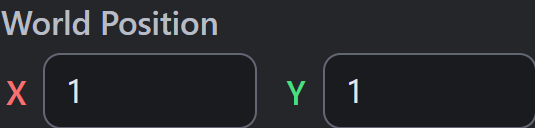
- X: one meter right.
- Y: one meter up from the origin, with its other axis held at the value shown.
World Position uses meters. From an origin of 0, 0, these values place the Object one meter right and one meter up.
The placement moves the Object’s components together. A component’s local offset moves that component relative to the Object’s origin.
For example, a Sprite offset can move the artwork while the Collider stays put. Check their offsets and sizes separately. A Sprite’s Positioning relationship can make it follow a Collider. Choose Independent for a separate Sprite offset.
Place Interface Content
World content belongs to the Scene and is viewed through a camera. Interface content can use Transform’s Window / UI presentation space. It is positioned against the game window.
Select Window / UI, then choose a Screen Anchor for the interface Object. In the Scene inspector, its position control becomes Screen Offset (px). Enter pixel offsets from that anchor. Positive X moves right; positive Y moves up.
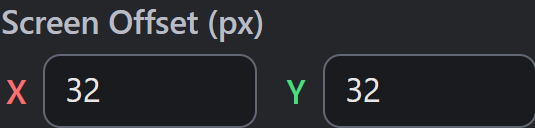
- X: 32 pixels right.
- Y: 32 pixels up from the chosen anchor, while X stays at the offset shown.
These offsets are pixels. They place the interface Object 32 pixels right and 32 pixels up from its chosen anchor.
An anchor keeps that relationship as the game window changes shape; check your layout at the smallest and largest supported sizes. UI, Text, and Buttons shows how to anchor and connect a button.
Choose a Position Space in Logic
A position-based Action’s space tells Myth how to read its point. World means the game world, measured in meters. This also applies when the acting Object uses Window / UI presentation.
For an Action that positions an interface Object itself, Screen uses its pixel offsets from the Screen Anchor. Choose the space that matches the point you are entering. Opening an older supported project upgrades its earlier interface-position Actions automatically; World Units and Image Scale explains the current project format.
Check the Authoring View
In the Scene Editor, Screen Space chooses the editable content layer. Game View shows the game window’s framing. The layer switch does not change an Object’s presentation space.
If an item is hard to select, check the active layer and Selectable in Scene Editor. You can also select its occurrence in Scene Explorer.
Use 3D axis handles and component fields. A 3D camera’s orientation is separate from these 2D direction conventions.
Myth Engine Documentation