
Change Full Screen During Play
Give your game a Full Screen key with Set Full Screen. Each press changes the game’s current full-screen state. Press again to switch back. Browsers can refuse entry, so check the game surface after each press.
Prepare the Input
With playtest stopped, prepare one enabled Logic attachment on a placed Object, keeping its Input Context active. Name a Button Command Full Screen and bind it to F.
The input guide explains Commands and keyboard bindings in Input Manager, while Weighted Maze’s controls show them in a complete project. Use the Time Action Reference to compare the Action’s choices.
Bind a Toggle
- Open the attached Logic and add Command Pressed.
- For the Event’s Command choice, select the
Full ScreenCommand you created. - In the Action palette, open Time > Game Session and add Set Full Screen.
- Keep Toggle selected in the Action.
- Connect the Mode’s bottom output to the Action’s top input; the editor connects the Action to End.
- Save the project, then start a fresh playtest.
- Click the game surface for focus, and press F once. Press F again.
Expected result: the two presses switch between full screen and the window. If a browser refuses entry, the game keeps running.
Save and reopen the project before exporting. Check the Command binding, selected mode, and enabled attachment after reopening.
Use Command Pressed for one toggle per activation; an Every Step Event would keep toggling. Check for duplicate handlers too.
Choose Toggle, On, or Off
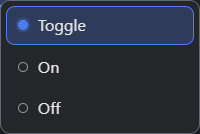
Set Full Screen's native choice menu.
- Toggle is selected. Open this choice from the Set Full Screen block.
| Choice | Result |
|---|---|
| Toggle | Switches from the current state to the other. |
| On | Enters full screen. An already full-screen game stays there. |
| Off | Leaves full screen. An already windowed game stays windowed. |
Use On and Off for controls that promise a specific state, such as entering full screen from a menu. A single Full Screen key can use Toggle.
Choose the Startup Window Mode
To change how a desktop game opens, use Game Settings > Display > Window Mode. Fullscreen starts the game in full screen; Windowed opens a window. The Action can change either starting state. With Fullscreen startup, Off returns the game to a window. Your saved Window Mode stays unchanged.
Check Browser Permission
Put Set Full Screen directly in the player’s input workflow. Browser entry usually needs a recent key press or click. Automatic requests can be refused.
Test the exported game directly, then inside its intended embedding page. An embed’s host policy can block full screen. If entry is refused, read Console for the Set Full Screen note. The runtime reports refusal once per Scene and keeps the game running. Try another game control afterward.
Repeat entry and exit after resizing and after changing Scenes. Check keyboard focus in both states. A larger game surface can reveal a layout problem. Check Display settings and screen-space UI for scaling and anchors.
Troubleshooting
| Symptom | Check |
|---|---|
| The Action is hard to find | Open Time > Game Session in the Action palette. |
| The key does nothing | Click the game for focus; check the binding, active Input Context, and enabled attachment. |
| It repeatedly enters and exits | Use Command Pressed and remove duplicate or repeating handlers. |
| An embed stays windowed | Check the host’s permission and read Console. |
| Full screen shifts the HUD | Inspect anchors and Display settings at the actual target size. |
| The game starts in the wrong mode | Set Window Mode in Game Settings > Display. |
Myth Engine Documentation