
Physics Settings
Game Settings > Physics sets world gravity and the 2D collision model. Each Object’s Transform controls whether gravity and forces move it, while its Collider supplies the contact shape.
Prerequisites
Stop Play first. In your 2D project, prepare two Objects with Colliders: Crate above Floor. Leave their initial velocity at zero, and remove motion Logic from this test pair.
The Object Editor guide explains component attachment. Collision and 2D Physics covers contact roles and filters.
Choose a Collision Model
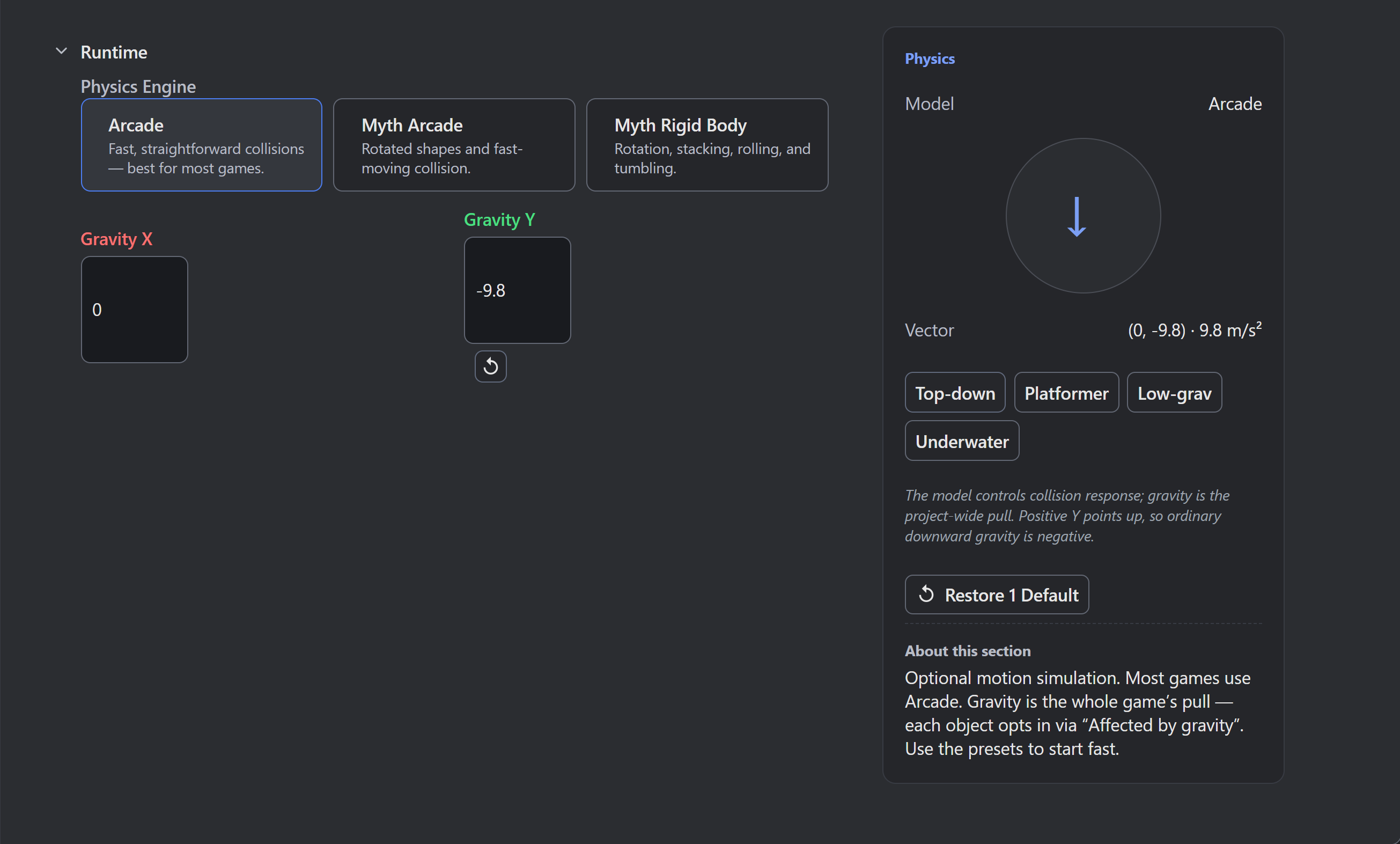
Select Game Settings in Resources, then Physics, and choose a card under Runtime > Physics Engine. Use Arcade first.
| Physics Engine | Response |
|---|---|
| Arcade | Straightforward 2D collisions. Start here for ordinary movement and contact. |
| Myth Arcade | Rotated collision shapes and fast-moving collision handling. |
| Myth Rigid Body | Rotation, stacking, rolling, and tumbling. |
Friction and Bounciness work across the models. After changing the model, rerun representative contacts with your game’s shapes and speeds, including any fast crossings.
These choices govern 2D physics; the 3D guide covers 3D behavior.
Configure Downward Gravity
- In Physics > Runtime, enter
0for Gravity X. - Enter the downward acceleration,
-9.8, for Gravity Y, then leave the field. - Check the Physics rail’s arrow.
- Open
Cratein the Object Editor and choose its Components mode. - Select Transform under Attached Components. Expand its Physics section to find the Object’s motion switches.
- Turn Physics Object and Affected by Gravity on.
- Return to the Scene. Start Play.
Crate falls under negative world gravity. World Y points up, so negative gravity pulls down; gravity is acceleration in meters per second squared (m/s²). Both world gravity components begin at zero in a new project.
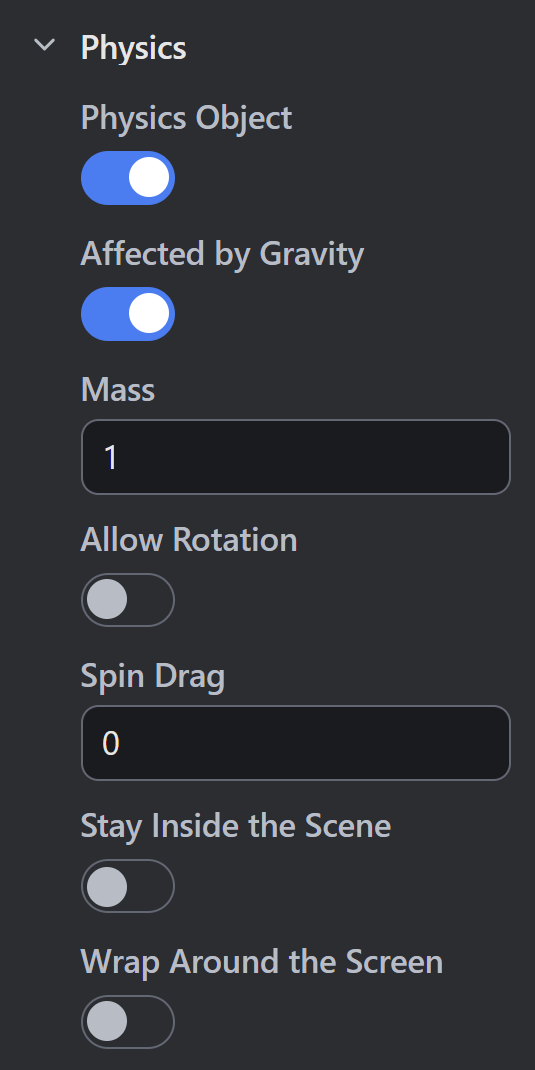
Physics Object lets gravity, forces, impulses, and other bodies push the Object. With it off, authored velocity and position Logic can still move the Object. Its Colliders still participate in contacts.
Affected by Gravity is the Object’s separate gravity switch; turning it off leaves other physics response available. In Logic, Set World Gravity changes the world’s pull. Use Set Object Gravity to change one Physics Object’s gravity switch.
Understand Gravity Presets
Select one of the Physics rail’s four starting presets, then read Gravity X/Y before playing.
| Preset | Gravity X | Gravity Y |
|---|---|---|
| Top-down | 0 |
0 m/s² |
| Platformer | 0 |
-30.625 m/s² |
| Low-grav | 0 |
-9.375 m/s² |
| Underwater | 0 |
-3.75 m/s² |
These values are world accelerations, and changing Pixels per Meter does not rescale them. Image density determines picture size; the World Units guide explains that setting. Underwater selects lower gravity. Add water behavior separately.
Configure the Landing Pair
For this check, choose Solid on each Collider’s Collision control. Keep both contact shapes enabled. Set the following flags under each Object’s Transform > Physics.
| Transform Setting | Crate | Floor |
|---|---|---|
| Physics Object | On | Off |
| Affected by Gravity | On | Hidden while Physics Object is off |
Floor can block Crate while Physics Object is off, so keep Floor free of authored movement. Crate should fall onto it and stop passing downward through its shape.
When the visible pictures overlap unexpectedly, inspect the contact shapes, including their bounds, Collider offsets, and Object scale. Keep filters broad for the first check. A Sensor reports overlap without providing the Solid role’s blocking response.
Tune and Compare Response
Begin with simple shapes and moderate speeds, then change one setting and rerun the same contact. Collider’s Physics section holds Bounciness and Friction. Transform’s Physics section holds Mass, Allow Rotation, and Spin Drag when Physics Object is on.
To test stacks and impact rotation, choose Myth Rigid Body and turn Allow Rotation on for Objects that should tumble. Check that Logic leaves their rotation and velocity available to physics.
Verify Persistence and Lifecycle
Save and reopen the project, then recheck the selected model, gravity values, both Objects’ Transform flags, and Collider roles. Start a fresh Play run and repeat the landing check.
Test Scene changes separately. Gravity Actions and other motion Logic can replace the starting behavior during play.
Troubleshooting
| Symptom | Check |
|---|---|
| Crate does not fall | Nonzero world gravity; Transform’s Physics Object and Affected by Gravity; motion Logic or a held body state. |
| Crate rises | Gravity Y’s sign. Negative Y pulls down in the editor. |
| Crate passes through Floor | Both contact shapes, Solid roles, offsets, scale, filters, and crossing speed. |
| A preset gives an unexpected number | Read Gravity Y directly. The preset stores a world acceleration; image density does not convert it. |
| A stack does not rotate | Myth Rigid Body, Transform’s Allow Rotation, and rotation Logic. |
| Floor moves | Authored velocity or position Logic can move an Object with Physics Object off. |
Myth Engine Documentation