
Saving and Loading Progress
Save score 2 in a checkpoint, change it to 7, then load 2 back. The checkpoint survives fresh runs.
How the Parts Fit
Your .mythproj file keeps the resources and starting values you edit. Save it through the editor’s File menu.
Save Game keeps runtime progress in a named player-storage slot, and Load Game checks that record before restoring it.
Starting from score 0 in the project, change it to 2 during play and save it in checkpoint.
After changing score to 7, you load that slot. Score returns to 2.
You choose when to request each operation, then wait for it to finish before requesting another.
- Current score: 2
Your interaction changes score during play.
Save Game
checkpoint: 2The slot keeps score 2 with the rest of its supported snapshot state.
Load Game
Restored score: 2After changing score to 7, load restores the saved Scene and score 2.
- Project starts at 0
Save starting score 0 in the project file.
- You choose when
Request one operation, then wait for its completion.
Prerequisites
- Use an existing playable Scene with active Objects whose compatible Logic can respond to UI activation.
- Declare a Number Project Global named
score, default0. - Provide interactions that change score to
2and7. - Provide separate save and load Buttons with enabled Logic slots, following UI, Text, and Buttons for their setup.
First, confirm that your interactions change score in the Debugger. Keep this working before adding persistence.
Use checkpoint for the test slot while keeping existing player saves separate.
After editing the project’s Logic, save the project and start a fresh Debug Play run to test your changes.
Configure a Named Save Slot
- Open the save Button’s attached Logic. Select its UI Activated Mode before adding Actions.
- Search the Action List for
Save Gameand click the Action. Set Slot to the Stringcheckpoint. - Connect the Mode’s lower output through Save Game to End. Leave Variable Name as
saveGameResult. - Click Add Event, double-click Add Custom Event…, and enter
save:succeededin Event name. Click OK. - Select the new Custom Event’s Mode. Add Print Debugger Message and connect that Mode through it to End.
- Set Message to
Save completed, Category toSave Check, and Type to Info. - Add a Custom Event named
save:failed. Select its Mode, then add and connect its own Print Debugger Message. - Use Message
Save failed, CategorySave Check, and Type Error. Save the project. - Start Debug Play, change score to
2, and activate save once, then wait forSave completedin the Debugger Console.
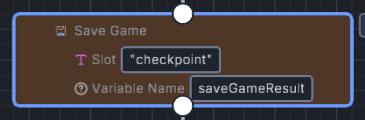
- Slot is the String checkpoint, which the native canvas displays in quotes.
- Later Logic can read typed fields from the result named saveGameResult in Variable Name.
EventUI Activated
- Save Game
- Slot
checkpoint- Variable Name
saveGameResult
End
This Logic card comes from the project’s selected Mode. Follow the native connections through End; an unattached Action stays outside that sequence.
Keep the completion observer in your test: Save completed appears after the slot write succeeds.
A message placed before Save Game reports the trigger. Read the storage outcome too.
Request and Verify Loading
- Open the separate load Button’s Logic. Select its UI Activated Mode, then add Load Game.
- Set Slot to
checkpoint. Connect the Mode through Load Game to End. - Leave Variable Name as
loadGameResult. Add Custom Events namedload:succeededandload:failed. - Select each new Event’s Mode before adding its Print Debugger Message, then connect that Mode through its diagnostic to End.
- For
load:succeeded, use MessageLoad completed, CategorySave Check, and Type Info. - For
load:failed, use MessageLoad failed, CategorySave Check, and Type Error. Save the project. - Keep the success observer in the saved Scene because loading can replace the instance that requested it.
- In a fresh Debug Play run, save score
2, change it to7, and activate load once. Wait forLoad completed. - Select a current live instance again in the Debugger and check its Scene and score: the saved Scene and
2should return.
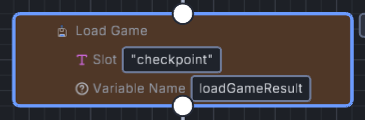
- Load Game uses the String checkpoint, matching the name entered in Save Game exactly.
- Variable Name is loadGameResult. Completion also has its own Custom Event.
Stop, then start another Debug Play run in the same storage context. Score starts at its authored default, 0.
Load checkpoint again. Score should return to 2, with the saved Scene restored.
Understand Results and Completion
| Result Field | Save Game | Load Game |
|---|---|---|
Saved / Loaded (ok) |
True after the slot write succeeds. | True after restoration completes. |
| Status | saved, pending, or failed. |
pending, loaded, or failed. |
| Slot | The resolved slot name. | The resolved slot name. |
| Error Code | The machine-readable failure reason. | The machine-readable failure reason. |
| Message | An explanation when supplied. | An explanation when supplied. |
Variable Name identifies the result produced by that Action, so later Logic can select one of its typed fields. Events and Actions shows how to read a named result.
A result describes the request when its Action returns. A held pending result stays pending.
Use the completion Custom Events for delayed results, which arrive as later outcomes.
Some simulation callbacks defer saving until the complete simulation step ends. Loading can also need preparation. Wait for completion before competing navigation or another request. Keep save and load requests out of per-frame Logic. A newer load can supersede an older one, while restarting or changing Scenes can interrupt a load.
Choose State That Belongs in a Save
| Choice | What It Changes | When to Pick It |
|---|---|---|
| Save the project file | Keeps authored resources and defaults. A fresh run starts from those values. | After editing the project. Save, then restart Debug Play to test the edits. |
Save Game to checkpoint |
Keeps supported runtime progress after the write succeeds. Load restores it after completion. | A checkpoint that the player can return to. |
| Use different named slots | Keeps separate records. Saving a slot replaces that slot’s previous record. | Multiple player saves or separate test progress. |
Exclude a declared Global with save: false |
Leaves it out of snapshots. Loading keeps its current runtime value. | A value that should stay outside checkpoint restoration. |
Names are case-sensitive, so checkpoint and Checkpoint identify different slots.
Use the same exact name when saving, checking, loading, or deleting. Avoid surrounding spaces.
Empty or omitted text selects default; auto is the autosave slot. The example keeps its name fixed.
If a pause menu supplies $menuSlot, check that Global’s current value before reuse.
The snapshot includes the current Scene, save-enabled declared Globals, supported instance state, mutable Data Tables, and supported feature state. Files, network sessions, and browser services keep their own state. Test your game’s feature state, including active timers and Object data, before relying on the snapshot.
Ordinary declared Project Globals are included, and loading restores their saved runtime values.
The example restores 2 even though score’s authored default is 0.
A Global declared with save: false keeps its live value during loading.
On a fresh run, that declaration starts from its default; exclusion alone keeps no runtime value between runs.
Loading cancels parked Wait or Sleep continuations from the outgoing runtime. Those interrupted chains end. Select restored instances again before inspecting or using them.
Handle Refused or Failed Operations
Use Check Save Exists to decide whether to offer Continue. Presence and validity are separate checks. Keep a failure path even when a record exists, since Load Game validates its contents. Resume gameplay only after loading completes successfully.
| Error Code | What Happened | What to Do |
|---|---|---|
quota-exceeded |
Storage refused the write. | Keep the previous slot. Offer retry or a deliberate storage-management choice. |
storage-unavailable |
Storage access is blocked or unavailable. | Explain the failed operation. Retry after access is restored. |
snapshot-failed |
Runtime state could not be validated or encoded. | Inspect the diagnostic and reproduce the cause before retrying. |
missing-save |
The resolved slot has no save. | Check its exact name and prior successful write. Offer a new-game path. |
invalid-json / invalid-state |
The record is damaged or structurally invalid. | Keep the record while diagnosing it. Admission leaves the current world intact. |
unsupported-version / incompatible-content |
The version or required game content is unavailable. | Keep the record and explain the compatibility failure. Retry cannot supply missing content. |
incompatible-scale |
The record uses an older pixel-era world format. | Keep it and explain that the current runtime refuses that format. |
superseded / interrupted |
Another operation displaced the load. | Wait for the active operation before starting another request. |
restore-in-progress / restore-incomplete |
Saving was requested during restoration or after a failed restore. | Wait for successful restoration, load a valid save, or restart before saving. |
Admission failures leave the current world intact, but a failure during restoration can leave incomplete runtime state. The runtime blocks a follow-up save of that incomplete restore. Recover before saving again.
The failure notice offers Retry save, Retry load, or Dismiss, as applicable. Dismiss closes the notice. Retry requests the operation again, which can fail again while its cause remains unresolved. Compare Status or Error Code in Logic. Use Message to explain the failure.
Check Persistence Before Publishing
Record the Scene, score, slot, and completed outcome at each step. Keep the completion diagnostics with that record.
Test save at 2, change to 7, load back to 2, then load in a fresh run.
Also load a missing slot. Retry and Dismiss should preserve current progress and the existing checkpoint.
Current snapshots use envelope version 4, and the loader accepts formats 3 and 4 when their content is compatible.
A version 2 envelope or an unenveloped pixel-era snapshot is refused.
The validator limits text to 16,777,216 characters and traversal to 2,000,000 nodes. Maximum depth is 64. It accepts at most 100,000 instances. Browser quota can be lower than these limits, so test realistic worst-case progress on each supported target.
Browser saves belong to their storage context, so origins, profiles, browsers, and devices keep separate storage. Clearing site storage removes them. Test your published game under its final hosting origin, repeating after changes to content, title, or identity.
Ordinary legacy games use a title-based namespace, so changing the title can change which saves are found. Games with a creation identity use a title-independent owner namespace. Preserve that identity between releases. Test existing saves before publishing an update; cross-version migration is separate work. Delete Save removes the specified slot. Reserve it for a deliberate reset or test cleanup.
Where to Look Next
Time Actions lists exact save, load, delete, and completion fields. Queries covers Check Save Exists. Testing and Debugging covers reproducible diagnostics.
For a related storage example, read Sky Ace’s High Score. It uses Persistent Values to keep a best score between plays, storing individual values separately from game checkpoints.
Myth Engine Documentation