
Project Files and Missing Assets
Keep the original project folder intact. Before moving files, changing versions, or saving recovered work, copy the document and all its associated media.
Recover Unsaved Work
The desktop editor can keep unsaved work in an automatic recovery snapshot belonging to a particular project. Your saved .mythproj document remains separate from that recovery.
Open the matching project from Recent Projects or File > Open Recent. When matching recovery exists, Recover Unsaved Myth Project names the project and shows when the snapshot was saved. Read that information before choosing.
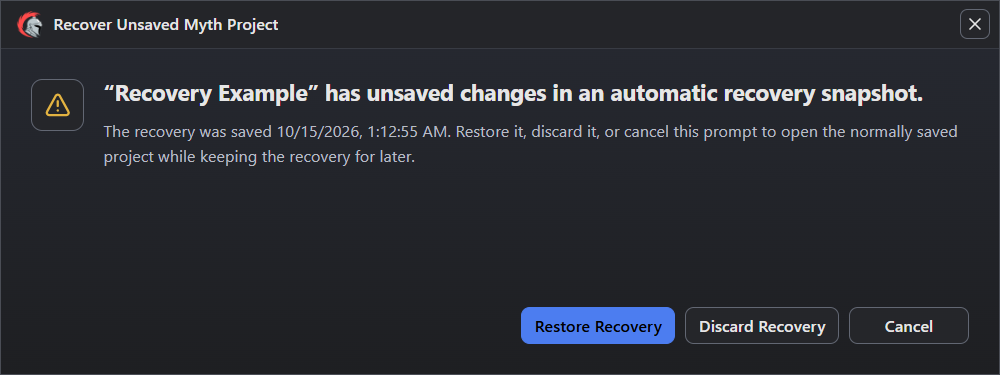
- Check the project name and the recovery snapshot time.
- Restore Recovery opens the unsaved work.
- Discard Recovery removes the snapshot and opens the normally saved project.
- Cancel retains recovery for later.
| Choice | Result |
|---|---|
| Restore Recovery | Opens the unsaved snapshot, including its recovery media. The recovered project needs saving. |
| Discard Recovery | Deletes the recovery snapshot and opens the normally saved project. |
| Cancel | Opens the normally saved project and keeps its recovery available. |
Choose Cancel to inspect saved work first. To restore the retained snapshot later, open the same recent project again and choose Restore Recovery. An explicit save or a later successful recovery backup can supersede the retained snapshot. Decide before continuing work.
Inspect the recovered changes and imported media. File > Save saves them to the current project, while File > Save as… creates a separate working copy. Projects and Resources explains project storage.
Restore Missing Media
A moved project can lose media when its companion folder stays behind. Check both names. For external media, Forest.mythproj uses the matching Forest.assets folder beside it. Projects without external media may have no companion folder.
Read the missing-file diagnostic first. Missing required assets block Run; restore the matching files inside the project’s .assets folder. Myth reconnects those restored files automatically.
Check the imported image after restoring its file. Keep original source exports for later reimport through the Sprite Editor, whose guide explains image imports and frame controls.
Once the image loads, follow its connections into the game:
| What You See | What to Check |
|---|---|
| Sprite image loads, but the Object has no art | The resource selected in that Object’s Sprite component. |
| Object preview has art, but the Scene does not | The exact occurrence in Scene Explorer, its visibility, and its position. |
| Scene has art, but a fresh Run does not | The start Scene, active state, starting visibility, camera, and runtime Logic. |
For missing audio, inspect its imported file in the Sound Editor, then check the Sound selected by the relevant Action. Audio and Particles explains gameplay playback.
Open an Older Project
Current Myth refuses pixel-era projects. Preserve the complete folder for a compatible engine; changing a format marker does not convert coordinates or gameplay values.
For an older project the current engine accepts, open a complete copy and read any conversion choice before proceeding. Review the loaded Scenes, Logic, and media, then test the affected gameplay. Keep the original folder until every check passes on the converted copy.
Verify a Repaired Copy
- Open the copied document from its exact path. Repair the first concrete file or resource error.
- Inspect the affected image or Sound and its component or Action assignment.
- Save the copy, close it, and reopen that saved document.
- Start a fresh Run from the intended Scene. Complete the interaction that previously failed.
- If distributed media was affected, export to a new destination and test that output separately.
Keep the original until these checks confirm that the reopened copy contains the repaired resources and their saved media.
If the problem persists, record the engine version, edition, and exact error. Include the file operation that preceded it and a minimal project where possible. Use the available support channels.
Myth Engine Documentation