
Script Editor
Write Bonus Point to add one point after an interaction sets score to 7. The Debugger Console will print Script score 8.
How the Parts Fit
A Script resource holds JavaScript source. An Execute Script Action calls that resource from a connected Event sequence. Its API reads and changes declared state.
- Bonus Point
Save Bonus Point.
choose Script
Connected LogicThe connected sequence sets score to 7 before calling the Script resource named Bonus Point.
activate interaction
Score Becomes 8Console reports the updated score.
- You Choose the Event
Choose the calling Event to control when its saved sequence invokes the Script.
Creating the resource prepares its callable source. Its caller decides when it runs.
Your Part
Use an existing playable Scene with a Number Project Global named score, default 0. Prepare an interaction whose attached Logic sets score to 7 when activated. The Saving and Loading guide uses this same setup; its save and load Actions can stay separate.
Stop the playtest before editing. Confirm that your original interaction reaches 7 in the Debugger, then return to its Logic. This example extends that working sequence.
Create Bonus Point
- Turn on Settings > Advanced Mode to show the scripting controls.
- Select Add in Resources. Filter for
Script, select Add Script, and enterBonus Pointin Name. - Select Create. In Script Code, replace the starting contents with these two lines:
api.setGlobal('score', '+=', 1);console.log('Script score', api.getGlobal('score'));The first line adds one to the declared numeric Global. The second reads it and prints the result. Keep the declaration in your project: writing a name in source doesn’t declare its Global.
Open More, then select Check Script. The status should read No problems. Use the Toolbox search for setGlobal to inspect its arguments and numeric-state contract.

- Open More for Check Script, Jump to Issue, or Find in Scripts.
Call It After the Score Change
- Open the interaction’s attached Logic. Select its UI Activated Mode, which already sets score to
7. - Search the Action List for
Execute Scriptand add it after that change. - If the new block is unattached, right-click it and choose Connect to Sequence.
- Open its Script choice and select Bonus Point. Trace the sequence through End.
- Save the project, close it, and reopen the saved file. Confirm the reopened project retains both the two-line source and its chosen Bonus Point resource.
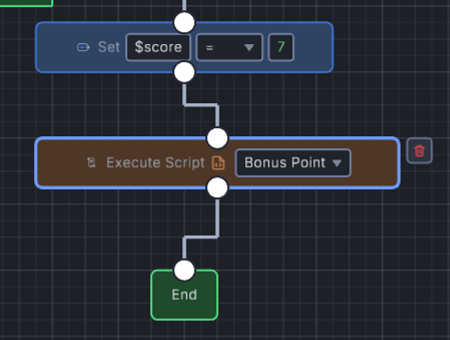
- Script selects the Bonus Point resource.
- End follows both connected Actions after the Script finishes its call.
EventUI Activated
- Change Variable
- Variable
$score- Operator
=- Value
7
- Execute Script
- Script
Bonus Point
End
This card is made from the saved project. Match this saved sequence by keeping both original Action blocks connected between the Mode and End.
Start a fresh Debug Play run and activate the interaction once. Open the Debugger’s Console tab. Look for Script score 8, then inspect the current score.
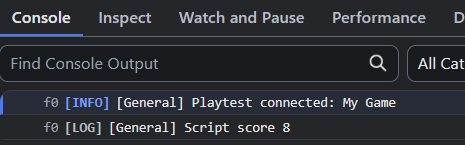
- Script score 8 comes from the Script console.log call.
The Event first sets 7, so another activation repeats 8. After changing source or Logic, stop and start a fresh playtest to test the saved setup again.
What You Choose
| Choice | What It Changes | When to Choose It |
|---|---|---|
| Calling Event | When the connected Execute Script runs. | Use UI Activated for this interaction; Create suits one-time creation work. |
| Script resource | Which saved source the Action calls. | Choose Bonus Point here; reuse a Script from several callers when they need the same work. |
| Toolbox API entry | The operations and argument types your code uses. | Inspect an entry before changing state or working with live instances. |
| Library alias | Imported helpers available under lib.ext. |
Use a verified Library when its helper is needed. |
Myth supplies ctx, api, and lib when invoking the source. ctx.self identifies the calling live instance; collision calls can also supply ctx.other. For an API argument that expects a live instance, pass the supplied handle from the invocation context. An Object resource name refers to its definition.
Find and Fix Problems
Use More > Find in Scripts to search the project’s Script source. Enter Script score. Escape closes the search.
| What You See | What to Check |
|---|---|
| A syntax problem | Open Issues or choose More > Jump to Issue. The editor moves to the reported source position. |
| No problems, followed by a runtime error | Read the actual Debugger Console after invoking the Script. Syntax checking and running the code answer separate questions. |
| No Script message | Check Advanced Mode, the selected Script, connected Actions, and whether the calling Event fires. |
| Score stays unchanged | Confirm the Number Global declaration and its exact name. Check the API entry and current runtime value. |
Use a bounded loop whenever a Script needs to repeat an operation during one call. The Toolbox documents api.tick() for manual loop guards. Check a distributed build as well, especially when using imported Libraries or platform APIs.
Where to Look Next
The Execute Script reference lists its exact field. The Toolbox documents available Script operations, their argument types, and the values they return to your code. Follow Logic Events for calling sequences and testing for runtime inspection.
Push Lab: Remember the Press uses Scripts with a supplied Library, then calls them from native Logic. Keep that recipe’s source and project with its lesson.
Myth Engine Documentation