
Sound Editor
A Sound resource contains imported audio and reusable playback settings. The Sound Editor previews that resource. Logic determines when it plays in the game, and project audio settings determine how resource volume combines with the Sound Effects or Music bus and master mix.
Prerequisites
- An open project with playtest stopped and a Sound resource, named
Short Cuebelow. - An audio file supported by the engine’s audio decoder. The two-second WAV check file provides a quiet, constant tone for checking interval and fades.
- An enabled Logic attachment on an active Scene Object for a gameplay check.
Create a Sound from Add, or open an existing Sound from the Resource Tree.
Import and Preview Audio
- Open
Short Cue. - In an empty resource, select Import Audio… and choose the file. For an existing resource, the Source panel’s Import replaces the audio source.
- Wait for the filename, format, duration, and waveform to appear.
- In Playback, choose Type: Sound Effect, retain Volume: 100%, and disable Loop.
- In Pitch Variation, choose Preset: None.
- Use Play, Pause, and Stop in the timeline transport.
Expected result: the supplied source is identified as two-seconds.wav, lasts two seconds, and plays at its original pitch. Silence in the preview requires checking the source, resource volume, project mix, and system audio output before adding gameplay Logic.
The editor changes settings around the imported source. Selecting a shorter interval does not permanently cut bytes from the original file. Replacing the source requires reviewing all time settings against the new duration.
Select an Interval and Add Fades
- Expand Properties > Selection if collapsed.
- Set Start to
0.25and Finish to1.75. - Set Fade in to
0.1and Fade Out to0.2. - Confirm the Selection summary shows a
1.5-second interval. - Select Play and listen to the selected interval. Compare it with the full source before accepting the settings.
Expected result: playback begins a quarter-second into the source and ends at 1.75 seconds. The beginning and end ramp in volume over the configured fade durations.
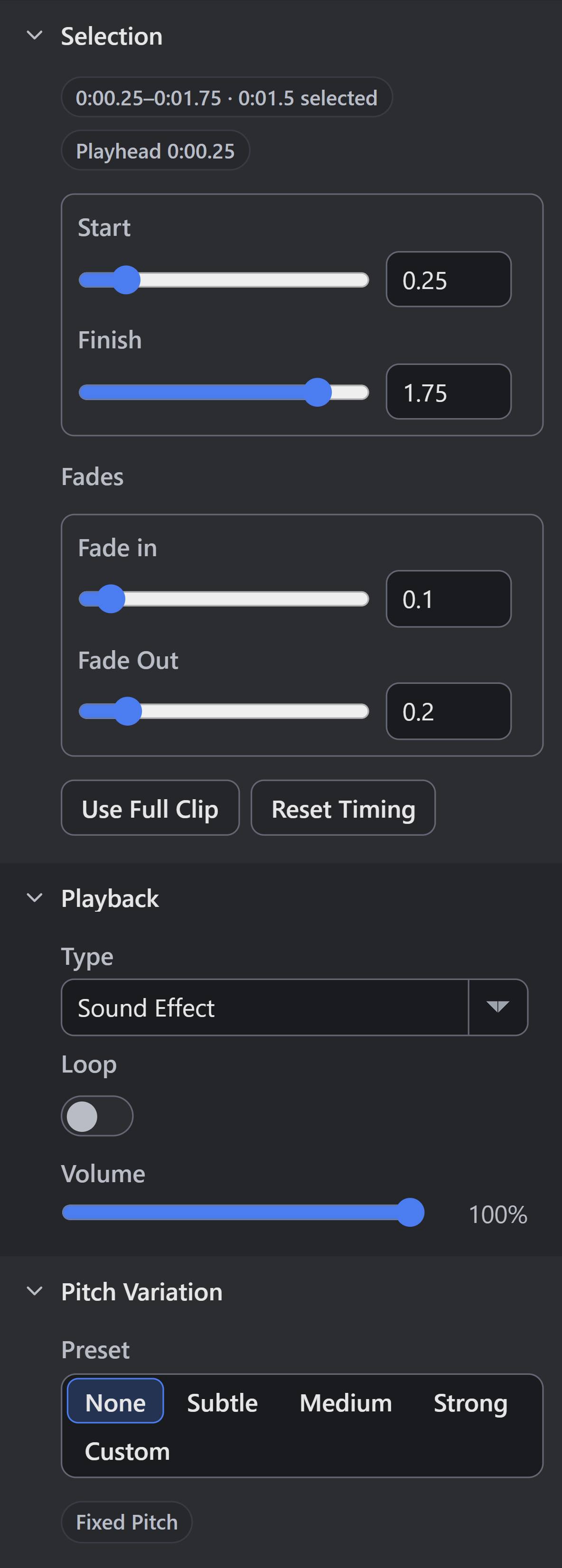
- Start: 0.25 s
- Finish: 1.75 s
- Fade Out: 0.2 s
| Selection Control | Units and Behavior |
|---|---|
| Start | Seconds from the beginning of the imported source; default 0. |
| Finish | End position in the source audio, measured in seconds from its beginning. The initial full-clip display uses the decoded end time. |
| Fade in / Fade Out | Seconds within the selected interval; default 0. Each fade is limited by the selected duration. |
| Use Full Clip | Restores selection of the entire imported source. |
| Reset Timing | Restores timing settings, including fades. |
The waveform’s selection and fade handles provide another way to edit these values. Set Start and Set Finish use the current playhead. Inspect the numeric summary after a drag; zoomed waveform appearance alone is insufficient to confirm an exact time.
Keep Finish after Start and within the source. Very short intervals or overlapping fades can make a sound unexpectedly quiet. Changing Start or Finish can shorten the permissible fade duration; recheck the fade fields after changing the interval.
Configure Playback and Variation
Type selects Sound Effect or Music routing. It does not itself create a looping music controller. Loop is the resource’s default repeating behavior; test the chosen gameplay Action’s operation as well.
Volume displays a percentage; 100% corresponds to a resource multiplier of 1, and 0% is silent. Sound resource, bus, and master multipliers combine. Lowering a bus can silence several resources at once, even when each resource’s Volume is nonzero.
Pitch Variation offers None, Subtle, Medium, Strong, and Custom. None uses the original pitch. Custom reveals Minimum Semitones and Maximum Semitones, with a supported editor range of −24 to 24. 0 is original pitch; 12 raises pitch by one octave. Set both bounds to the same value for a fixed pitch. Pitch variation also changes playback speed and perceived duration, so use None when measuring the interval.
For a looping resource, listen across several boundaries. Listen for a gap or click at each boundary. Check the source endpoints, trim, fades, pitch, and project audio processing.
Play the Resource Through Logic
- Open an enabled Logic Component attached to an active Object in the Scene.
- Use a discrete Event, such as an existing activation or contact-entering Event.
- Add Control Sound from Audio > Sound and Music.
- Set Operation to
playand Sound toShort Cue. - Connect the workflow, run the Scene, and trigger the Event once.
Expected result: the selected Sound plays once when the Event executes. A successful editor preview establishes usable media; this game check also verifies the Event, attachment, and Action resource selection.
For repeating sound, select the appropriate loop operation and provide Control Sound > stop at the end of the gameplay condition. Triggering Play every Step can create repeated or overlapping voices. Use Play Sound At when position-dependent audio is required; its spatial settings are separate from source trimming.
Verify Persistence and Distribution
Save and reopen the project. Confirm the source, Selection interval, fades, Type, Volume, and pitch preset. Test repeated activations, stopping, Scene changes, and the actual published browser game. A browser can require a player interaction before allowing audio playback; test the first interaction used by the game.
Troubleshooting
| Symptom | Diagnosis and correction |
|---|---|
| No waveform or duration appears | Wait for decoding; check whether the source format imports correctly. Replace with a known valid WAV for diagnosis. |
| Preview is silent | Check Volume, bus and master volume, system output, and whether the selected interval contains sound. |
| Preview works but the game is silent | Confirm the Event runs, Logic attachment is enabled, and Control Sound selects this resource. |
| Finish value seems to shorten the wrong amount | Treat Finish as an absolute source time; subtract Start to calculate the selected duration. |
| Sound becomes quiet after trimming | Check fade lengths relative to the new selection. |
| Each play has a different duration or pitch | Inspect Pitch Variation and runtime pitch changes; use None for the comparison. |
| A loop keeps playing | Execute stop for the same Sound resource and verify the terminating Event. |
See Audio Mixing and Effects, Audio and Particles, and the Audio Action Reference.
Myth Engine Documentation