
Objects and Components
An Object defines the components and Logic a game entity uses. Scene placements can share it. Each placement can keep supported overrides for its own component settings and variable values.
Use a Scene-local Object when its composition belongs to one Scene. Its private definition stays with that placement.
Start with the Role
| Role | Typical Parts |
|---|---|
| Visible 2D character | Transform, Sprite, optional Collider, movement Logic |
| Invisible trigger | Transform, Sensor Collider, contact Logic |
| Game state holder | Transform, Data Structure, state Logic |
| UI button | Window / UI Transform, Text or Sprite, UI Interaction, activation Logic |
| 3D prop | Transform, 3D Model or Primitive, optional gameplay Logic |
Transform is the Object’s foundation, even when the Object has no visual component. A Sprite supplies its image. A Collider supplies collision geometry, which can differ from the visible shape.
Choose Who Owns the Edit
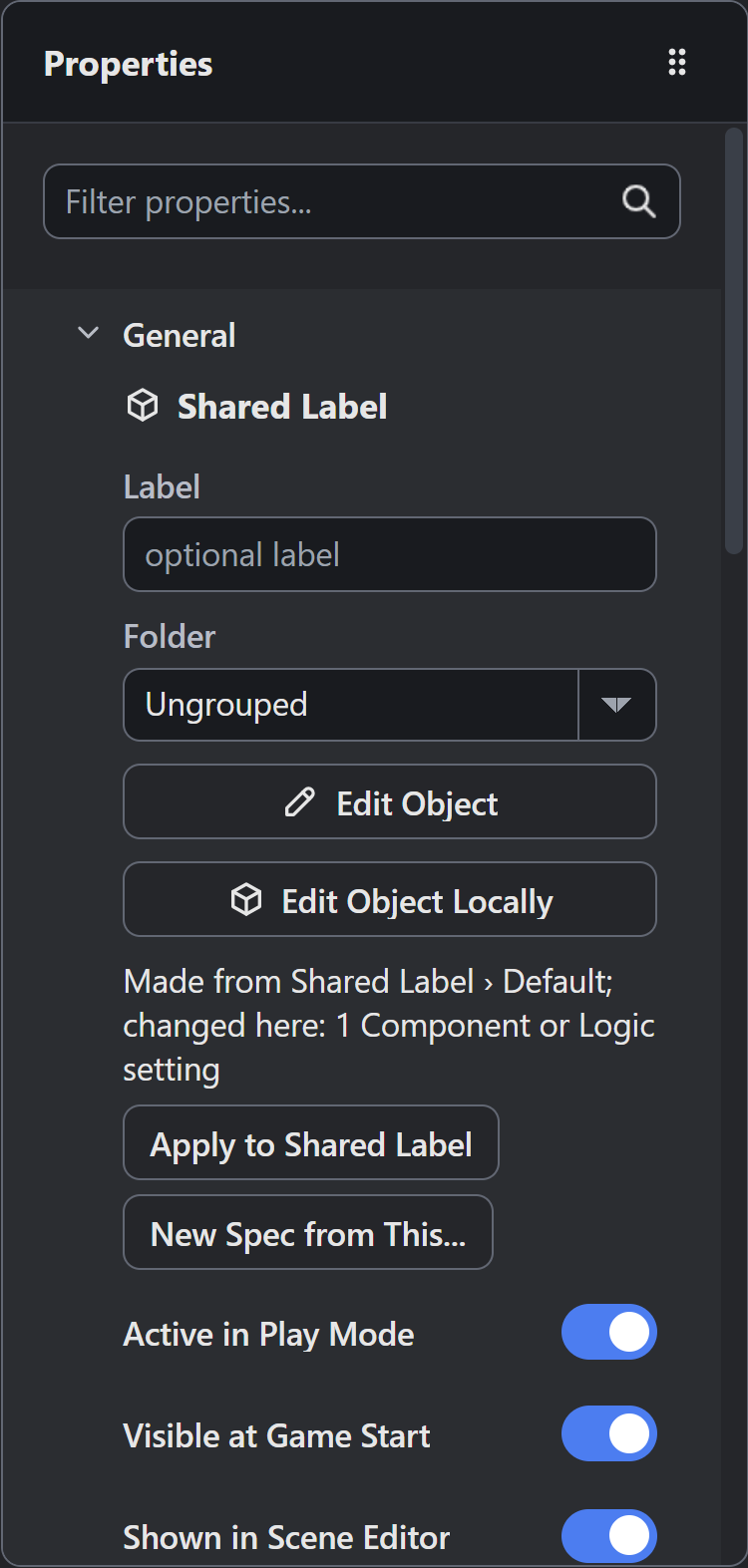
Start in Scene Explorer. Select the placement’s row, then choose the control for the scope you need.
| Control | What You Edit | Who Receives the Change |
|---|---|---|
| Edit Object | The reusable Object resource | Placements inheriting that setting |
| Edit Object Locally | Supported component values on the selected placement | That placement |
| Edit Components and Logic… | A Scene-local Object’s private definition | That Scene-local Object |
For example, an explicit Text override keeps its value when you later change the corresponding shared resource default. To change component membership on a reusable design, edit the Object resource itself. Placement overrides keep that composition.
Check Definition Inheritance
Create a reusable 2D Text Object named Shared Label, using Window / UI Presentation Space and the UI layer. Give it two Scene placements. The Object Editor and Scene Editor guides cover creating the resource and placing it.
Stop the playtest before changing the authored settings.
- Select either placement in Scene Explorer and use Edit Object to open its reusable resource.
- Select Text under Attached Components > Text / UIs. Set Text to
Openand Font Size to30. - Select your Scene’s tab. For each placement, choose Edit Object Locally, then select Text / UI under Attached Components. Both should inherit
Openand font size30. Use Back to Scene between placements to restore the Scene Explorer and placement controls. - Select the first placement. Choose Edit Object Locally, select Text / UI, and change Text to
Locked. Finish with Back to Scene. Reopen its local component settings and check that the Text override remains. - Choose Back to Scene before opening Edit Object again. Change the resource’s Text to
Enter. Select the Scene’s tab and inspect both placements through Edit Object Locally, selecting Text / UI each time. The first keepsLocked; the second inheritsEnter. Return with Back to Scene between those checks. - On the first placement, choose Edit Object Locally, select Text / UI, then choose Reset Component Overrides. It should now inherit
Enter. Use Back to Scene to restore the placement controls before the final inspection. - Save the project and reopen it. Inspect the resource and both placements to check that the authored settings persist.
| Stage | Resource Text | First Placement | Second Placement |
|---|---|---|---|
| Shared default | Open | Open | Open |
| First placement overridden | Open | Locked | Open |
| Resource changed | Enter | Locked | Enter |
| First component reset | Enter | Enter | Enter |
Reset Component Overrides clears the selected component’s whole override patch, including its other overridden fields. Check those settings before resetting. The component remains in the resource, and the placement inherits its defaults again.
Keep Per Instance Values
An Object’s Per Instance Variables have Starting Values. A placement inherits each value until you author a different one in Scene Properties.
For example, amount starting at 1 can have a placement value of 0. A Boolean starting at Yes can be No, and Text starting at Open can be empty. These values still differ from their defaults.
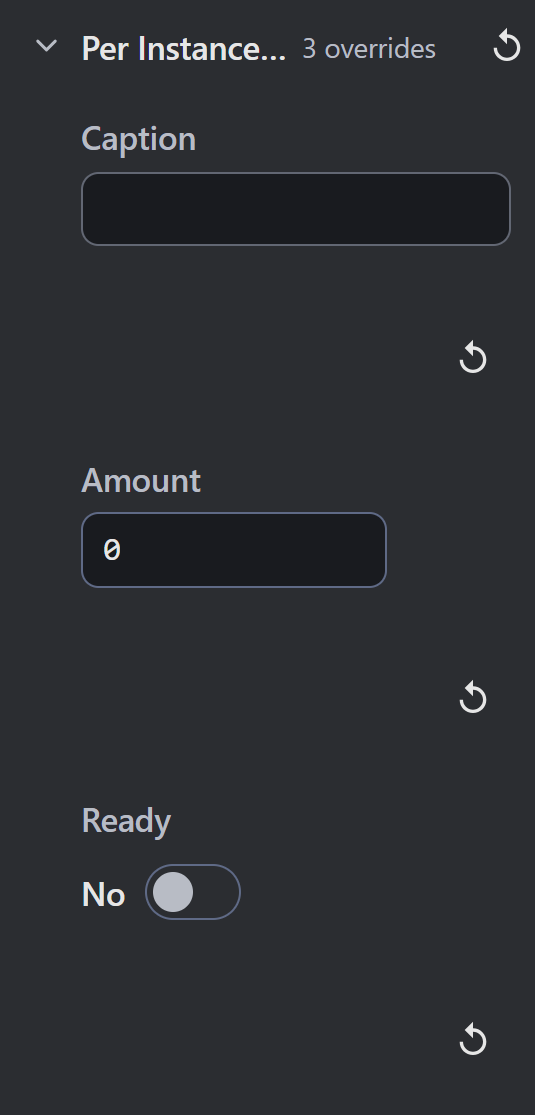
Use the reset control beside a variable to restore its Starting Value. Reset All Values clears every variable override on that placement, leaving its component overrides intact. Entering a variable’s current Starting Value also removes its stored override.
Shared Variables have no placement values. The Variables and Shared State guide explains how their ownership differs from Per Instance Variables.
Name Component Slots Clearly
Some component types allow named instances. Names such as hurtbox or leftHand distinguish those slots when Logic needs a particular component.
Check both name and type. Similar-looking Objects can expose different component contracts, so appearance alone does not establish compatibility. Parameters covers structural requirements. Use the component reference when checking which types an Object needs.
For Scene-local conversion and runtime lifetimes, continue with Scenes and Instances.
Myth Engine Documentation