
Collision and 2D Physics
A Collider supplies an Object’s contact shape. Its Sprite supplies the picture. Those outlines can differ, so inspect the Collider when contact looks wrong.
Set world gravity in Physics Settings. Each Object’s Transform > Physics controls its motion; its Collider supplies the contact shape and surface settings.
Set Geometry First
Open the Object in Components mode. Select its Collider under Attached Components, or add one from Component Toolbox. Begin with a simple shape. Adjust its size and local position, then test it in a Scene.
Check both participants. Object scale and the Collider’s local transform affect contact, so Sprites can overlap while their Colliders remain apart. Inspect the shapes themselves.
Trigger or Solid Response
Choose one of these roles on the Collider’s Collision control.
| Choice | Contact behavior |
|---|---|
| Solid | Blocks other Solid shapes according to the selected collision model and Object motion settings. |
| Sensor | Detects overlap and fires Collision Events without blocking movement. |
| Off | Disables both contact detection and blocking for this Collider. |
Two Sensors can report contact. A Sensor does not need a Solid partner.
For a falling crate, turn Physics Object and Affected by Gravity on under Transform > Physics. World gravity must also be nonzero.
For a stationary floor, use a Solid Collider with Physics Object off, and leave authored velocity and motion Logic unset. The flag does not lock its position. Authored velocity or position Logic can still move it.
Mass and rotation belong to Transform’s Physics section, while the Collider’s Physics section holds Bounciness and Friction. See the verified crate-and-floor check before tuning a larger Scene.
Contact Events
Collision Enter runs when contact starts, and Collision Leave runs when it ends. Collision can run every touching step.
Choose Enter for a first-contact reaction, or use ongoing Collision when it must continue. A damage region may use a cooldown to control repeated damage.
The Event’s self carries the Logic, and other identifies the partner touching it. In Goal’s Collision Enter Event, self means Goal; when Player touches it, other means that Player instance. Check the destruction target. Targeting other in Destroy Instance would therefore remove Player instead of the collectible.
Open the attached Logic and select its contact Event. Expand Collision in the Event block. Set Collision Target to the partner Object, such as Player. Keep Using and With at Any Collider for the first check. In With, choose a partner Tag to narrow the Event to contacts carrying that Tag.
Build a One-Time Trigger Collectible
A collectible uses a Sensor to meet the player without blocking it, then its Collision Enter reaction awards a result and destroys self. Return through its old position. No live collectible remains to award again during that run.
For the worked construction, read Sky Ace’s pickups lesson. It connects Sensor contacts, interaction partners, and collection Logic in a built game. This guide covers the controls behind that lesson.
Test a nearby miss, first contact, and a return through the old position. Count the award. Only the first successful collection should change it.
Configure the Two Participants
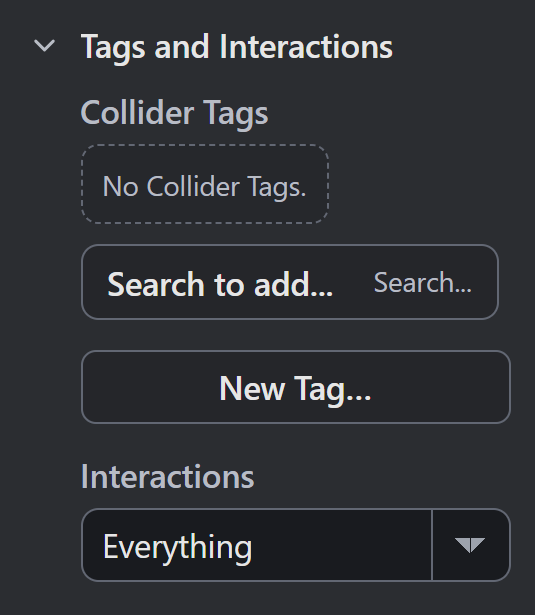
Open each Collider’s Tags and Interactions section. Its Interactions choice controls which partners can make contact:
| Choice | Partners accepted |
|---|---|
| Everything | Every otherwise eligible Collider. |
| Collide Only With | Listed Objects, their Variants, and partners matching listed Tags. An empty list accepts none. |
| Never Collide With | Partners outside listed Objects, their Variants, and listed Tags. An empty list excludes none. |
An Object entry also matches its Variants. A composed Child Object matches through its own definition or Tags; listing its parent does not automatically include it.
Check both Colliders’ choices. Either participant can exclude the other. An interaction filter stops contact and its Collision Events; an Event filter selects which accepted contacts run that Event.
Collider Tags belong to that Collider, while Object Tags belong to the Object. Interaction lists can match either kind. An Object Tag filter matches Object Tags; do not substitute a Collider Tag for it.
Use Logic state to choose where your counters and cooldown values belong.
Troubleshooting
| Symptom | Check |
|---|---|
| Pictures overlap without contact | Both Collider shapes, local transforms, Collision roles, and interaction lists. |
| A pickup blocks movement | Select Sensor on its Collider’s Collision control. |
| An award repeats | Choose Collision Enter, check Logic attachments, and destroy self after collection. |
| The player disappears | Check the Destroy Instance target on the collectible. |
| Only some Objects make contact | Inspect both interaction lists and the Event’s Collision Target. |
| An Object falls in a top-down Scene | Check Transform’s Physics Object and Affected by Gravity switches, world gravity, and motion Logic. |
Save the project and reopen it before the final check. Repeat first contact, sustained overlap, separation, and re-entry in a fresh Play run. Test contact Events and Solid blocking separately; they are different outcomes.
Myth Engine Documentation