
Data Structure Editor
A Data Structure defines named fields, their types, and defaults. An Object’s Data Structure component uses those fields for its initial state. Each runtime instance has its own values.
For example, EnemyStats can declare health 100. An Object can start at 90, or use a table entry that supplies 25. The schema keeps its default.
Prerequisites
- An open project; stop playtest before editing its authored values.
- A Data Structure resource named
EnemyStats. Create it from Add, or open one from Data Structures in the Resource Tree. - An existing Object for the component check.
Use Number and Text fields for this first check. The same schema will supply the columns in Data Table Editor.
Define Fields and Defaults
- Open
EnemyStats. - Choose Add Field. Set Name to
health, Type to Number, and Value to100. - Choose Add Field again. Set Name to
label, Type to Text, and Value toUnnamed. - Inspect both rows, then save the project.
The schema now has two fields. Value sets each field’s default, which an Object inherits until you supply another initial value.
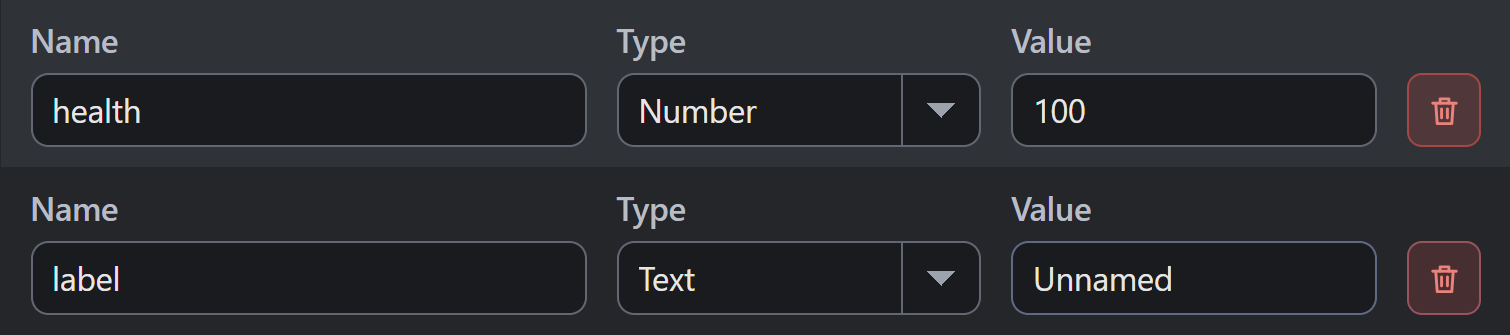
- Type is Number for health and Text for label.
- Value supplies the defaults: 100 and Unnamed.
Keep field names descriptive and unique within the schema. Correct any validation message before leaving the field.
Choose Field Types
Number holds numeric values such as health, while Text holds labels, including empty text. Choose the type that the consuming Logic expects.
A field’s name doesn’t determine its unit. If distance is a Number, explain its coordinate space and unit where you use it. Inspect the actual type picker before choosing other field kinds.
Attach the Structure to an Object
- Open the Object and choose Components.
- In Component Toolbox, expand Data and select Data Structure to add the component to this Object.
- Select that component under Attached Components.
- Assign the schema by choosing
EnemyStatsin the selected component’s Data Structure resource control. - Keep Input Source at Object Values, then expand Values.
- Confirm health
100and labelUnnamed. - Set the Object’s health to
90, then check that the schema still declares100. - Use the reset control beside health to restore the Object’s inherited value of
100.
Object Values holds this Object’s initial field values. A field override leaves the schema unchanged. Check this component’s attachment name and target instance when selecting its fields in Logic.
Use Table-Supplied Initial Values
Create Enemies using the Data Table Editor steps, choosing this same EnemyStats resource for Entry Type. A separate schema with matching field names has a different resource identity, so its table won’t appear here.
| Entry | health | label |
|---|---|---|
| Slime | 25 | GreenSlime |
| Bat | 15 | NightBat |
In the selected component’s properties:
- Set Input Source to Data Table.
- Choose
Enemiesin Data Table. - Choose
Slimein Row and confirm that Values immediately shows health25and labelGreenSlime. - Choose
Batnext. Values should immediately show health15and labelNightBatfor that selected entry. - Save and reopen the project, then confirm the component still selects Enemies and Bat.
The selected row supplies the Object’s initial fields, shown as read-only values in this editor. Their annotations identify the source.
To edit those values, open the table; changes there belong to its selected entry. Choose Unlink to keep an Object copy. It copies the selected row’s current values into Object Values, giving Bat’s health 15 and label NightBat.
You can then change this Object’s health to 12 while Bat’s table cell remains 15. Save and reopen to check the copy.
Read and Change Runtime State
The Data Structures and State guide covers declared component fields in Logic. Read a field through its selected component, and use Change Component Value to change that instance’s field.
Two instances can start from Bat with health 15; changing one to 33 leaves its sibling at 15. The authored table also keeps 15.
Set Data Cell changes the live table instead. Existing instances keep the field values they already received from their initial source entry. Data Table Editor covers table operations.
Stop, then start a fresh Debug Play run to check the authored values again. In this example, both instances return to 15.
Review Schema Changes
After renaming, changing Type, or deleting a field, inspect its users. Check attached Objects and every table using that schema, including Logic expressions that depend on its name and type.
Read any conversion or usage confirmation before accepting a change. Save and reopen afterward. Check the values in a fresh run before relying on the revised schema.
Troubleshooting
| Symptom | What to Check |
|---|---|
| A field name is rejected | Read the validation message; check its identifier, reserved names, and duplicates. |
| The Object shows no fields | Select its attached Data Structure component, assign EnemyStats, and confirm that schema has fields. |
| Enemies is missing from the table picker | Its Entry Type must select the same EnemyStats resource as the component. |
| The Object shows health 100 | Check Input Source, Data Table, and Row. Object Values inherits the schema until overridden. |
| Linked values cannot be edited | Edit the table, or use Unlink to copy values into the Object. |
| Logic changes another health field | Check the target instance and selected component attachment. |
See Object Editor and Variables and Scope.
Myth Engine Documentation