
Import and Update Myth Packs
A Myth Pack adds reusable resources to your project, where you can edit them after installation. Later pack updates compare your edits with the incoming resources. Keep a backup before installing or updating a pack.
Understand an Installed Pack
The pack file contains the resources its creator included. Installing adds compatible content to your project and records the pack version. The installed resources become part of your saved project.
- Pack file
Open a .mythpack file with Install Myth Pack.
inspect
ReviewRead the contents and warnings. Choose Add to This Project.
Install
Installed resourcesSave, reopen, and test the imported content.
- Later update
Choose how each conflict treats your local edits.
Prerequisites
Save the project and back up its .mythproj together with the matching managed assets folder.
Keep the original .mythpack file too. See project files for the files that travel with a project.
Read the pack’s license and setup notes. Check its engine requirements and required packs. Use a separate project when trying an unfamiliar pack. Its example gives you a starting test.
Import and Check
- Choose File > Install Myth Pack… and select the
.mythpackfile. - Check the pack name and version. Keep Add to This Project selected to import into your open project.
- Expand Show Details. Inspect Contents, plus Readme and Changes when supplied.
- Review warnings and complete any Options supplied by the pack. Check Not included for resources this engine cannot use. Obtain required pack versions before using content that depends on them.
- If a code warning appears, read it. Select I trust this pack’s author only when you trust the source and want that code in your game.
- Select Install. Open an imported resource in the Resource Tree, then save and reopen the project.
- Test the pack’s documented example or intended interaction before adding it to existing gameplay.
The contents search filters the displayed list. Install adds compatible resources regardless of the search. Resource selection happens when the creator builds the pack. The installer omits resource types this engine cannot use. If Not included names content you need, ask the creator for a compatible pack. For example, searching a two-resource pack can show one row while the summary still says Adds 2 resources to this project.
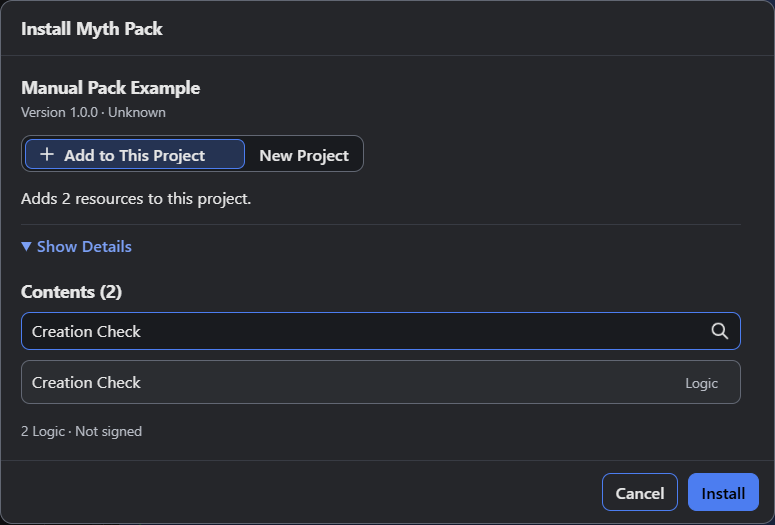
- The summary still adds two resources.
- The search displays one matching resource.
Code packs keep Install disabled until you select the trust control. Cancel leaves the project unchanged, and opening the file again starts with consent unchecked.
For a worked art import, follow the Chess recipe’s first chapter. It starts with Blank 2D and installs the Chess Starter Kit.
Update Without Losing Project Work
Save and back up the current project first. Choose File > Install Myth Pack… again and open the updated pack. An existing pack ID opens an update review with Update This Project selected.
Resources changed both in your project and in the incoming pack appear under Your Edits. Read each resource’s listed changes. Choose its Update Choice:
| Choice | Result |
|---|---|
| Keep Mine | Retain your edited resource. This is the initial conflict choice. |
| Use the Pack Version | Replace your edited resource with the incoming version. |
| Keep Both | Retain your resource and add an incoming copy with a different name. |
Review each resource row before updating. A resource you keep may still differ from the incoming pack.
Select Update when the choices are ready. The recorded pack version advances even when Keep Mine retains an edit. Save, reopen, and test the affected gameplay. With Keep Both, check which resource your game uses.
Open File > Myth Packs… to inspect installed pack names and versions. Expand Tracked Resources to inspect the recorded resources and their states. Keep the backup and prior pack file until the updated project works.
Troubleshooting
| What You See | What to Check |
|---|---|
| Search shows one resource, but the summary lists more | Search changes the visible list. Install adds compatible resources regardless of the search. |
| Install is disabled with a code warning | Read the warning and decide whether you trust the author. Cancel if you don’t. |
| A required pack is missing | Read the named dependency and required version. Obtain that pack before using the dependent content. |
| Not included names a resource | This engine omits it. Ask the creator for a compatible pack if you need that content. |
| The pack was made with a newer engine | Obtain a compatible pack or use an engine version that supports it. |
| Your edit survives an update | Check whether Keep Mine was selected for that resource. |
| A second resource appears after an update | Keep Both adds an incoming copy. Inspect its name and the references your game uses. |
| Media is missing after moving the project | Restore the matching managed assets folder from the project backup. |
Keep related resources together. An Object’s Logic can refer to other resources in the pack. Copying its picture alone leaves those other definitions behind. See projects and resources for resource ownership and references.
Myth Engine Documentation