
Data Table Editor
A Data Table stores named entries with the same fields. For example, Slime and Bat can each have health and a label. Each entry supplies its own values.
Use tables for reusable data such as enemy statistics or item prices. An Object can start from one entry.
Prerequisites
- An open project with playtest stopped.
- A Data Structure named
EnemyStats, with Number fieldhealthdefaulting to100and Text fieldlabeldefaulting toUnnamed. Follow Data Structure Editor to create it. - A Data Table named
Enemies, created from Add or opened from Data Tables in the Resource Tree. - An Object with an attached EnemyStats component for the binding check.
A new table has no rows. Its automatically created entry schema starts empty, so choose EnemyStats before adding entries.
Choose the Entry Schema
- Open
Enemies. - In the left Columns panel, expand Data Structure if collapsed.
- Set Entry Type to
EnemyStats. - Inspect the grid headers. They should show
healthas Number andlabelas Text.
Entry Type selects a Data Structure resource whose fields supply the table’s columns and defaults. Edit the schema to change its fields.
Before changing an existing table’s schema, save a project copy so you can compare its values. Review its columns and cells afterward. A different schema can change which values the table holds.
Add and Edit an Entry
- Choose Add Row below the grid to create an entry with health
100and labelUnnamed. - Double-click its Entry cell, enter
Slime, and press Enter to commit the name. - Double-click its health cell, enter
25, and press Enter. - For the Text value, double-click its label cell, enter
GreenSlime, and press Enter to commit. - Add another row. Use the same steps to set Entry
Bat, health15, and labelNightBat. - Click another cell and inspect both completed entries.
| Entry | health | label |
|---|---|---|
| Slime | 25 | GreenSlime |
| Bat | 15 | NightBat |
Each row holds the value you committed, while the schema still declares health 100.

- Entry names Slime and Bat identify the rows.
- Health is 25 for Slime and 15 for Bat.
The numbered gutter starts at 1. Numeric runtime indices start at 0, so the first row has index 0. Entry is the row’s authored name. Keep entry names nonempty and unique so you can distinguish them when choosing an Object’s source.
A single click selects a grid cell. Double-click it to edit its text, then commit with Enter. Check which mode you’re in before copying, pasting, or deleting.
Review and Undo Changes
Change Slime health from 25 to 27, then commit. Choose the editor’s Undo to reverse that authored edit and return Slime’s health to 25. Redo reapplies 27. Undo once more to restore this example’s values.
Save the project, reopen it, then inspect the table to check that the committed values persist. Confirm both rows’ values and names. Uncommitted text isn’t the finished cell value.
Initialize an Object From a Table Entry
- Open the Object resource, then choose Components to inspect its attached Data Structure.
- Select its attached Data Structure component, then confirm its Data Structure resource control selects
EnemyStats. - Set Input Source to Data Table.
- Choose
Enemiesin the Data Table resource control to use its entries as the initial source. - Choose
Slimein Row and confirm that Values immediately shows health25and labelGreenSlime. - Choose
Batnext. Values should immediately show health15and labelNightBatfor that selected entry. - Save and reopen the project to confirm that this component still selects Enemies and Bat.
The table picker lists tables using the component’s exact schema resource. Use the same EnemyStats for both. Linked fields are read-only in this Object editor.
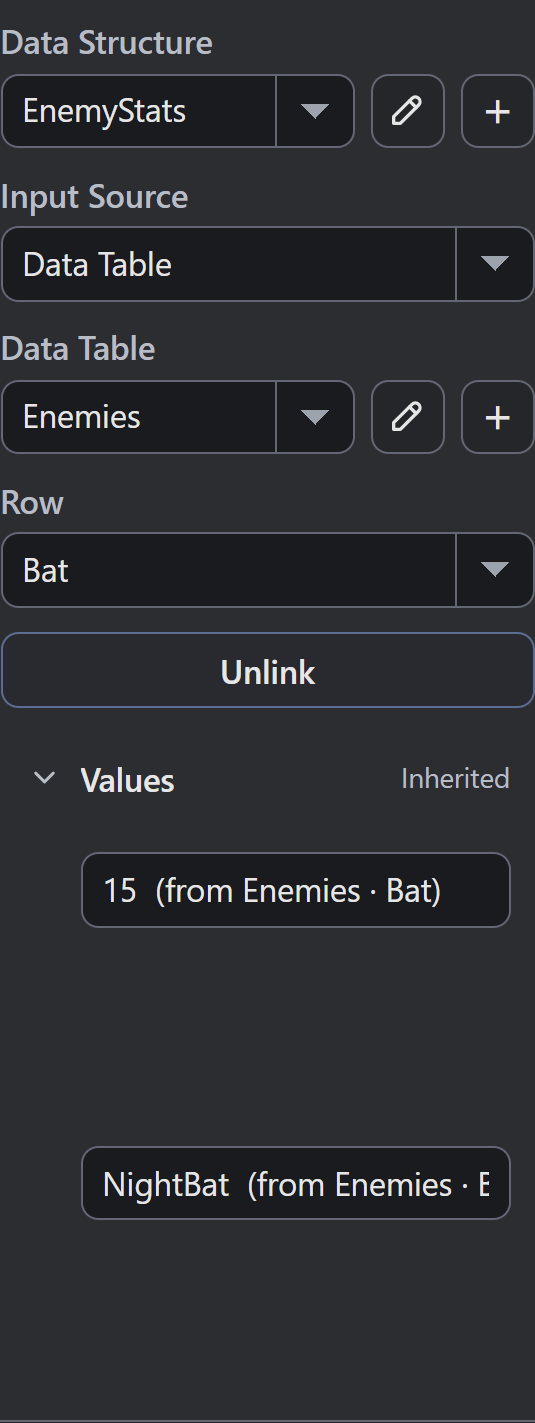
- Row selects Bat by its entry name.
- Values identifies health 15 as inherited from Enemies and Bat.
Unlink copies the selected row’s current values into Object Values. For Bat, that means health 15 and label NightBat. You can then edit the Object’s copy while the table keeps its own cells.
Query and Change Table Data Through Logic
Select the table, row, and column required by your Action. The column key is its schema field name. Check Data Row Exists checks whether an entry is present before you read it.
In an expression, data('Enemies', 0, 'health') reads the first row’s health. data('Enemies', 'Slime', 'health') reads the entry named Slime. A numeric index selects a position; quoted text selects a name.
Reordering rows can change what index 0 reads. The name still selects Slime while its name remains unchanged. Weighted Maze’s painting chapter uses both named settings and numeric cell indices.
Use Set Data Cell for a table write. For example, changing Bat’s live health to 50 leaves the authored editor cell at 15. Existing instances keep their current local fields.
Use Change Component Value to change one instance’s field. If two instances start at 15, changing one to 33 leaves the other at 15. See Data Structures and State for component targeting.
Stop, then start a fresh Debug Play run. Bat’s live table value and both instances return to 15, restoring the initial authored values for this example.
Control Data Row covers row changes, while Reset Data Table describes restoring the table’s data. Use explicit game storage when you need to save runtime changes.
Verify Changes and Dependencies
After changing a schema, inspect every table using it. Review field names, types, defaults, and retained cells, then check Objects that select its entries.
After renaming an entry, inspect dependent Row selections and Logic expressions. The table resource and its row name are different references. Run your intended Scene to check the values its Logic reads after these authored changes.
Troubleshooting
| Symptom | What to Check |
|---|---|
| A new table has no field columns | Choose EnemyStats in Entry Type. |
| A cell won’t accept typing | Double-click the cell to begin editing. |
| New rows start with unexpected values | Inspect the schema defaults. |
| The Object shows health 100 | Check Input Source, Enemies, and Row Slime or Bat. |
| Enemies is missing from the Object’s table picker | Both the table and component must select the same EnemyStats resource. |
| A query cannot find its entry | Check the exact Entry name and the Action’s name or index requirement. |
| A table write leaves an instance’s health unchanged | Change that instance’s component field when you intend to change its local state. |
See Data Structure Editor and Logic Variables.
Myth Engine Documentation