
Publish a Web Game
Publish your game as one HTML file or a complete Web Folder. Open the result outside the editor, wait for startup to finish, then test input and reload.
How the Files Fit Together
Single HTML embeds the engine and ordinary game assets in one file. Web Folder puts Babylon in a local babylon.min.js file and lets you embed or separate ordinary assets.
CDN HTML loads Babylon online.
Its ordinary game assets stay embedded.
- My Game
Save My Game with Main as its start Scene, then check a fresh run.
choose
Web formatChoose Single HTML, Web Folder or CDN HTML.
Publish
Browser gameOpen the complete output. Test Main, input and reload.
- PWA files
Web Folder can add a manifest and service worker. Test its actual offline behavior.
Before You Export
Use an existing playable project: this example publishes My Game, starting at Main.
Substitute your own project and Scene.
Save your project, then run it from a fresh state before exporting.
Publishing requires a valid Full Edition entitlement, as described in Licensing Terms. Playtest and Demo keep publishing unavailable. Use the Myth desktop app to write a Web Folder. A browser-hosted editor publishes Single HTML when a folder was selected and reports that change.
In Game Settings > General > Startup, check Start Scene. Check the game’s title. Web has no packaged App ID or Version field, even with PWA Files On.
Export and Verify
- Open Game Settings in the Resource Tree. Choose Publish.
- Select Web and set Format to Web Folder (Offline).
- Set Folder Assets to Separate Files in Assets/.
- Leave PWA Files and Write Web ZIP Off for the first test. Save the project.
- Click the toolbar Publish button. Choose a new dedicated release folder outside the source project.
- Check that the folder contains
index.html,babylon.min.jsand its generated supporting files, including separate assets underassets/. - Serve the whole folder using the next section, then wait for startup to finish. Check Main and try its first normal interaction.
- Reload and test again. Continue through a normal round or level, including replay and any Scene transitions your game uses.
The selector says Assets/; generated paths use lowercase assets/.
Preserve that structure on the host.
Keep the release files separate from the .mythproj you edit.
Serve a Web Folder Locally
Open a terminal in the generated folder, beside index.html.
With Python 3 installed, run:
python -m http.server 8000 --bind 127.0.0.1Open http://127.0.0.1:8000/. You should see My Game start in Main after loading finishes.
Try the controls, then reload.
Check initialization again before stopping the server with Ctrl+C.
Another local HTTP server can serve the same complete folder.
Upload every generated file.
Moving only index.html leaves local engine files or separate assets behind.
Repeat the test at the deployed HTTPS address.
Use browser developer tools to find required requests that fail or return the wrong file.
Web Output Choices
These choices affect the next Publish. Publish again after changing them, then reopen or reload the new output. Earlier releases stay in place.
| Field or choice | What it changes | When to pick it |
|---|---|---|
| Format: Single HTML (Offline) | Embeds Babylon, the game and ordinary imported assets in one HTML file. | Share a self-contained file, then test it directly in the intended browser. |
| Format: Web Folder (Offline) | Writes the Web payload and local Babylon beside its supporting files. | Host a complete folder, use separate assets, or add PWA files. Requires the desktop app. |
| Format: CDN HTML (Online) | Loads Babylon 9.28.0 from jsDelivr, with an integrity check. Ordinary assets remain embedded. |
Your players can reach that external dependency. Test with a connection. |
| Folder Assets: Embed assets in index.html | Embeds ordinary assets; Babylon remains a separate local file. | Keep ordinary payloads together inside a Web Folder. |
| Folder Assets: Separate Files in Assets/ | Writes ordinary assets separately under generated assets/ paths. |
Keep media separate for folder hosting. Copy every generated file. |
| PWA Files | Adds a web manifest, service worker and related icon or screenshot assets. | Test a web app through local HTTP, then HTTPS on the deployed site. |
| Write Web ZIP | Adds an archive of the generated Web Folder files. | Transfer the folder as an archive, then extract it before serving. |
Folder Assets, PWA Files and Write Web ZIP appear only for Web Folder. Switching to Single HTML or CDN HTML hides those controls and leaves their folder settings unused by that export.
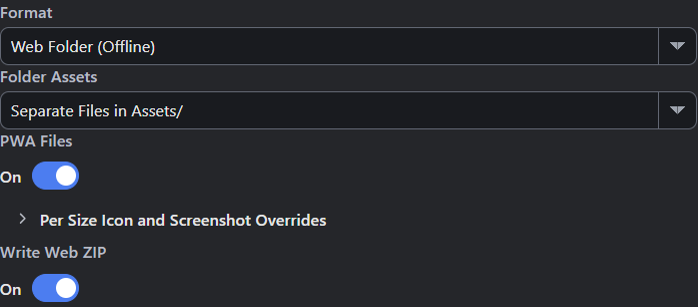
- Format is Web Folder (Offline).
- Folder Assets is Separate Files in Assets/; generated paths use assets/.
- PWA Files is On in this example of the optional output.
- Write Web ZIP is On. The archive is added when you publish.
Publish a Project as Single HTML
- Save My Game and confirm its intended start Scene is Main.
- In Game Settings > Publish, select Web and Single HTML (Offline).
- Click Publish. Choose a new HTML filename outside the source project.
- Open that file in the intended browser. Wait for startup to finish. Test the first input, a full round and reload.
For CDN HTML, choose CDN HTML (Online) in step 2 and test with network access. The engine dependency must load first.
Offline and External Dependencies
The Offline formats include their core engine dependency. Authored network calls, remote services, dynamic imports and custom file loads can still need a connection or additional files. Test the features your game uses.
Web Folder includes README.txt, licenses.txt, RELEASE-CHECKLIST.md and EXTERNAL-DEPENDENCIES.md alongside the playable files.
Read the dependency report, then test any custom runtime loads too; detection cannot cover arbitrary authored code.
PWA Output
Turn PWA Files On, publish again and serve the whole folder through HTTP on localhost or HTTPS on your deployed site.
Service workers need a suitable secure context; a file: URL cannot run this PWA setup.
Load the game online. Allow its service worker to take control before disconnecting, then reload and use the required controls.
The generated cache includes the static game files. runtime-assets/ and server files are excluded from its generated precache list.
Describe the offline conditions you’ve tested.
Test installation and updates separately on your supported browsers if you offer them. Before reusing an output destination, read publishing again.
Release Checks
| Check | Expected result |
|---|---|
| Fresh browser session | The intended start Scene and default state appear after startup. |
| First input | The intended mechanic responds outside the editor. |
| Full round or level | Required art, score, transitions and completion behave as designed. |
| Reload and replay | Each resets or restores state according to the game’s design. |
| Small supported window | Required text and controls remain visible and usable. |
| Audio, where used | Player interaction unlocks sound and the intended audio plays. |
| Offline use, when offered | Required gameplay works after the stated loading conditions. |
| Final hosted address | The entry page and all required files load from the deployed package. |
Retest each release. Keep the previous working release until the replacement passes.
Where to Look Next
Use General Settings for the exact startup fields and the resource reference for asset types. The Web output choices above list each publishing field used here. For a failed write, missing file or hosting error, follow Publishing Problems.
Read Weighted Maze: Show Terrain Picture for a published example of terrain art and UI. Check art and buttons after exporting.
Myth Engine Documentation