
Font Editor
A Font resource stores a font source, reusable drawing defaults, and prepared rendering data. Importing a font does not assign it to existing Text components. A component or styled text range can override the Font resource’s size and color defaults.
Prerequisites
- An open project with playtest stopped and a Font resource, named
Interface Fontbelow. - A valid
.ttf,.otf,.woff, or.woff2file with suitable glyphs and permitted distribution terms. - An Object with Text / UI content for the assignment check.
Create a Font from Add, or open one from the Resource Tree. The source used in the native check is SourceSans3-Regular.ttf; an existing licensed project font can be used instead.
Import a Font File
- Open
Interface Font. - In an empty resource, select From file and choose the font file. Dropping a font onto the main Font workspace also imports it.
- Wait for validation and rendering preparation to finish.
- Confirm the source filename, format, and available family information.
- Inspect the License panel and retain the original file’s accompanying terms and notices.
Expected result: the resource identifies the imported font and displays its specimen. Invalid or unsupported font bytes should be resolved before assigning the resource to gameplay text. A familiar filename alone does not establish a valid font file.
For a loaded resource, expand Replace Font to select another source. Replacing the file keeps the resource identity, so review every dependent text surface afterward. A different font can change glyph coverage, line lengths, and wrapping without changing the authored text.
Starter fonts offers bundled choices and installed suggestions. Installed fonts depends on the local system. Google Fonts requires its acquisition workflow to be available. The file-import procedure provides a controlled check without depending on those external catalogs.
Set Defaults and Inspect Text
- Set Defaults > Size to
32. - Keep Color white and Background at Dark for a contrast check.
- In Sample Text, enter representative strings, including digits and the game’s punctuation.
- Compare the specimen at the listed sample sizes. Use Score, Health, Title, or Dialogue under Try to inspect common text shapes.
- Paste representative game text into Will My Text Show and inspect the result.
Expected result: Size controls the Font’s pixel-size default, while Background changes the specimen’s editing background. Sample Text is a preview string; it does not replace the Text component’s authored content.
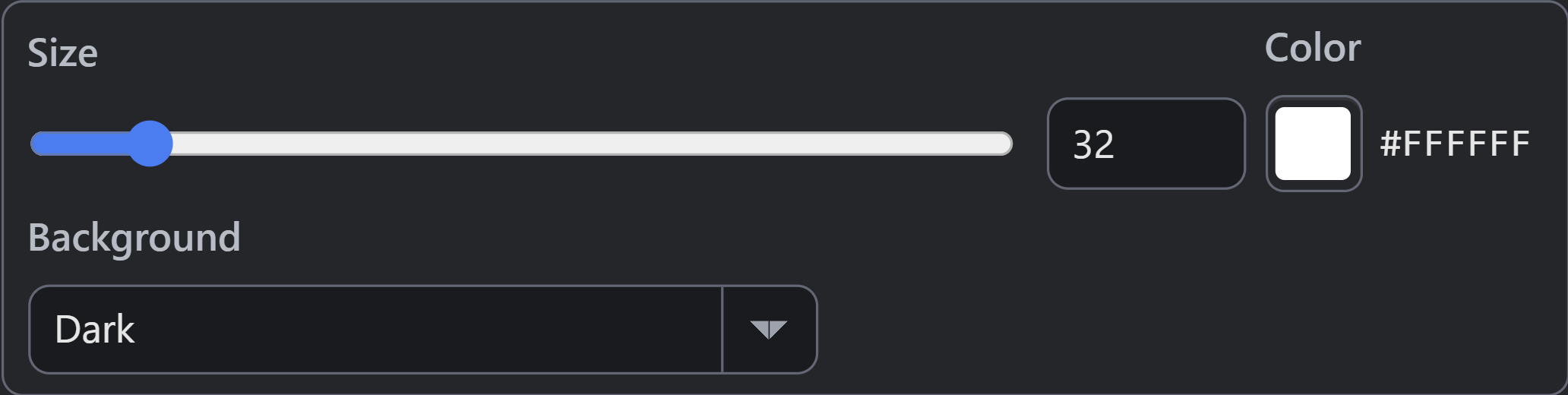
- Size: 32 source pixels
- Background changes the specimen preview.
The default Font Size is 32 pixels; the editor permits 6–256. A Text component’s Font Size can use a different coordinate-space convention. Current world-space 2D text stores metre-based size, while screen-space text uses pixels. Check the component’s presentation space before entering a size.
Inspect the smallest intended display size, mixed-case labels, accented characters, currency symbols, and digits. Numeric counters can visibly shift when digit widths vary. A font’s listed weight or feature metadata describes capabilities; it does not guarantee that every variable axis or OpenType feature is exposed as a runtime setting.
Inspect Glyphs, Fallback, and Export Size
Expand Advanced Glyphs Fallback and Export Size for the additional controls.
| Control or Report | Purpose and Limit |
|---|---|
| Will My Text Show | Checks representative text for unavailable glyphs. Inspect actual game rendering as well. |
| View Glyph Coverage | Inspects available character ranges after the font loads. |
| Backup Font | Selects fallback behavior for missing glyphs. Confirm the final rendering surface supports the selected fallback. |
| Shrink on Export | Can reduce eligible font data. The default is off. Authored text and dynamically generated text require different coverage checks. |
| License | Reports information found in the imported font. The original license remains the governing source. |
| Resource usage report | Helps locate dependents and inspect the selected defaults. Component-level styles still take precedence where configured. |
Keep shrinking off for the initial rendering check. If enabled later, test all localized and dynamic strings, including names, user input, generated descriptions, and changing counters. A static authored-text sample cannot establish coverage for characters that only appear during gameplay.
Assign the Font to Text
- Open the Object and choose Components.
- Expand Rendering in Component Toolbox and add Text / UI, or select an existing Text / UI row in Attached Components.
- Enter
Score 0123456789in the component’s Text field. - Open the component’s Font picker, locate
Interface Font, and commit the selection. Keyboard selection with Enter provides an explicit commit after highlighting the font. - Confirm that the Font control displays
Interface Font. Inspect any selected text range, because range styling can differ from the component’s default. - Choose the intended Font Size, bounds, and local position. Place or inspect the Object in a Scene.
- Save and reopen, then verify the same string in a fresh playtest.
Expected result: the intended content uses the imported face, and the choice survives reopening. When style is applied to a text range, the saved range carries the font even if the component’s underlying default remains unchanged. Inspect the whole displayed string when checking a uniform appearance.
Text bounds, wrapping, alignment, size, and source glyph availability all contribute to the result. A successful Font import and a correct picker label are useful checks; the rendered Scene and distributed game are the final display checks.
Review Licensing and Replacement
Review the source font’s actual license before distributing a game containing it. The editor’s license badge reports metadata; a file import does not grant additional rights. Keep required notices with the distributed game and review terms again when replacing the source. Engine licensing is documented separately in Licensing Terms.
The original font source should remain available outside the project. After replacement, check character coverage, fallback, line wrapping, weight/style, spacing, and every text surface using the resource. Browser and packaged exports must be checked independently.
Troubleshooting
| Symptom | Diagnosis and correction |
|---|---|
| Import is rejected | Check valid font bytes and format; try a known valid static font source. |
| Specimen remains blank | Wait for preparation, inspect import errors, and reimport the original file before debugging Scene text. |
| Scene text still uses another face | Check the component’s Font selection, commit it, and inspect styled text ranges. |
| Missing-character boxes appear | Check the exact strings, glyph coverage, fallback, and shrinking settings; test the distributed game. |
| Text changes after export shrinking | Disable shrinking and compare; include the dynamic/localized character set before enabling it again. |
| Text is clipped or wraps differently | Inspect Text bounds and size, then compare metrics after a font replacement. |
| Numeric counters move sideways | Compare digit widths and alignment; inspect the intended counter font at its final size. |
See Text Component Properties and UI and HUD.
Myth Engine Documentation