
Tags
Use Tags to label an Object, such as a Pickup or Enemy. Each 2D or 3D Object can have one Tags component. See Object components for definitions and instance overrides.
Add Object Tags
- Open the Object from Resources, then expand Data in Component Toolbox and click Tags.
- Choose Create New Tag… in Tag to Add, then click Add Selected Tag, the plus button.
- In Create Tag, enter
Pickupin Tag and click OK. - Repeat with
Quest. Check both rows under Object Tags.
Labels that already exist in the project appear in the same selector. Choose an existing label, then click the plus. Labels already on the Object are excluded from those choices.
Save the project, reopen it, and check that both labels remain before testing their count.
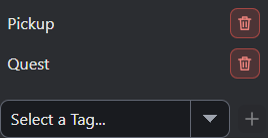
- Choose a label in Tag to Add, then click the plus.
- Remove Quest deletes that Object membership. The Tags component remains attached.
The trash button removes that label. Removing the last label leaves an empty Tags component attached.
Read Tag Count
The default authored list is empty. Tag Count is derived from the list during play. It is read-only. Writable below means exposed for Logic property writes.
| Property and path | Type | Factory default | Behavior | Writable |
|---|---|---|---|---|
| Tag Count (count) | number | Not stored; see behavior | Read-only number of Object Tag labels on the instance. An attached empty Tags component reads 0. Collider Tags do not contribute. | No |
During play, read self.tags.count in Logic to get this Object’s current label count: 2 for Pickup and Quest. Remove Quest and play again: the count reads 1. Remove Pickup, keeping Tags attached, and the next play reads 0.
Count measures the Object’s own list. Collider Tags belong to individual Colliders and do not increase it. Adding a Collider-only label leaves the two-label Object’s count at 2. Use the Collision guide to configure Sensor contacts and choose a filter for the other participant.
Sky Ace’s pickup chapter shows a Pickup Object Tag alongside a separate Collider filter. Follow its Power Up Pickup section for that project setup.
Myth Engine Documentation