
Text and Live Values
A Text component can show a label or a changing value. You author its content. During play, live expressions resolve values within that text as the game state changes.
Start with where the label belongs. Window / UI uses screen pixels; 2D World uses world units and the Camera. That choice affects font size and layout.
Add and Edit Text
Open an existing 2D Scene with the playtest stopped.
- Select Place, then choose Text under Add Scene Content > New Scene Object.
- Click an empty part of the Scene preview, then select Select and choose the new Scene Explorer row.
- In Properties, choose Edit Components and Logic….
- For a screen label, set the Object’s Presentation Space to Window / UI. Use the UI render layer.
- Under Attached Components > Text / UIs, select the Text component.
- Enter
Scorein Text. Set Font Size to24and Alignment to Left. Leave Visible enabled. - Select Done, then reopen the same component. Check that its content and font size remain.
You can edit a Scene-local Text component directly, then save those changes with the project. Several instances can share an Object resource’s definition. Open that resource’s Components mode to edit its Text.
Alignment places characters within the text layout, while the component’s local Transform places Text within its Object. Object placement moves the whole Object.
Choose a Font and Size
For a screen label, Font Size 24 means 24 screen pixels. A world label uses world units: at 32 pixels per metre, 0.75 metres corresponds to 24 source pixels.
Check Presentation Space before copying a size between Objects; the same number means different sizes in these spaces. World Units and Image Scale explains the conversion.
Assign a Font resource to package a specific typeface with your game. A family name alone does not include its file. Font Editor covers import and font settings.
Bold, Italic, size, and color can vary across character ranges within one component. Select the range before applying formatting. Test accents and the longest translated labels in play.
Display a Live Value
For this example, declare a Number Project Global named score, with a default of 0. Variables and Shared State explains declarations and ownership.
- Open the Text component.
- Enter
Score: {$score:000}in Text. Keep Fit to Text for the first check. - Start Debug Play. At the default value, the label should read Score: 000.
- Use your gameplay Logic to change
scoreto2, then check that the label reads Score: 002. - Start a fresh run and check the authored default unless your startup Logic loads progress.
Declare score; read it with $score. Braces mark the expression within the surrounding text.
The 000 format pads the displayed number to three digits without changing its stored value. For an unpadded label, use Score: {$score}.
The content editor keeps your template; the game displays its resolved value. A preview does not prove runtime state. Check the label in play after the Action that changes its value.
A private Local Variable belongs to its Logic execution context, while this counter reads a declared Project Global. Use Functions to pass values through inputs and outputs.
Legacy binding fields also appear in the Text Properties Reference. A Preview Value supplies an editor sample without initializing a runtime Global or loading progress.
Choose Bounds and Wrapping
Short labels can follow their content, while longer descriptions often need a deliberate line width.
| Text Bounds | Width in Play | Height in Play |
|---|---|---|
| Fit to Text | Derived from content | Derived from content |
| Wrap to Width | Authored Text Frame Width | Derived from wrapped lines |
- Select Wrap to Width in Text Bounds.
- For a screen label, set Text Frame Width to
180to give each line an authored width in pixels. - Enter
Checkpoint progress is ready to save.Inspect the line breaks before and after reducing the frame width. - Check that Text Frame Height is disabled; wrapping determines the rendered height without an authored fixed height.
- Restore your intended content. Check the longest value and translated label in the game window.
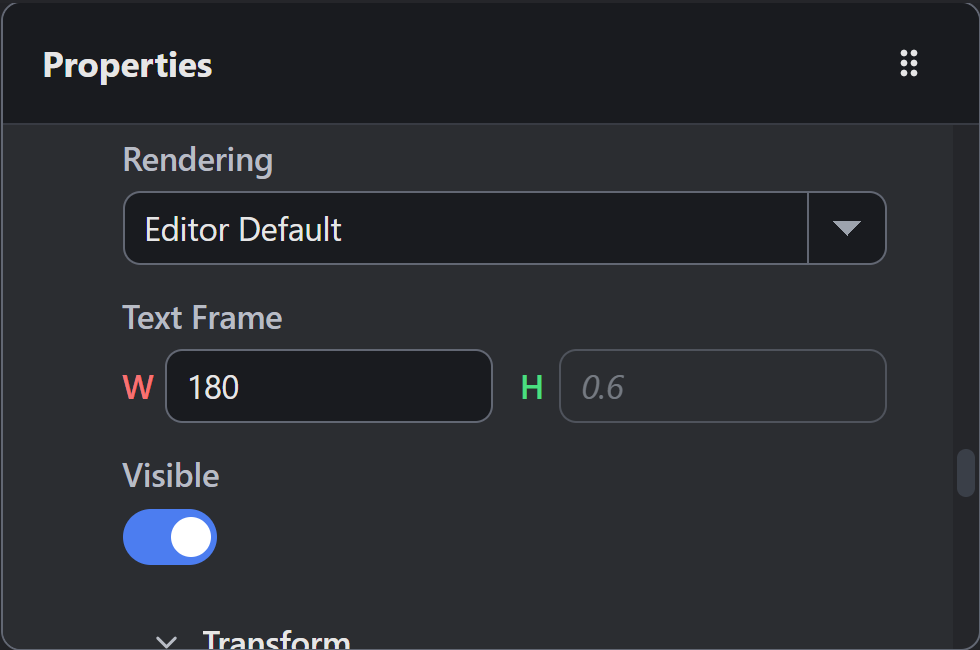
The disabled height field shows a stored layout value. Rendered height follows the wrapped lines.
Wrapping does not shrink the font to fit a fixed height, so leave space below Text for additional lines. Letter Spacing and Line Spacing affect layout too.
Fit to Text derives both dimensions from the content instead of using an authored fixed box. Change Font Size to change type size.
Text bounds and button bounds serve different purposes: a growing label can leave its button’s interaction area unchanged. UI, Text, and Buttons explains that area.
Rendering and Local Placement
Rendering offers Editor Default, Vector, and Rasterized Pixels. Compare the result in your target output before choosing an explicit mode. A rendering mode does not change variable ownership.
The Text component’s Transform has local Position, Size, and Rotation. Positioning can relate it to another component, so inspect that relationship before changing a local offset. Choose Independent for the Text’s own placement.
Troubleshooting
| Symptom | Check |
|---|---|
| Score stays at its default | Inspect the Global and the Action’s Scope and Variable fields |
| Braces or missing values appear | Check the expression and its declared variable in Debug Play |
| Text is enormous or nearly invisible | Check Presentation Space and use the appropriate size units |
| Frame width cannot be edited | Choose Wrap to Width for an authored width |
| Height cannot be edited | Height is derived from content and wrapping |
| Text grows beyond its panel | Test longer values and reserve space for their bounds |
| Font differs between machines | Import and assign the intended Font resource |
| A local offset is constrained | Check Positioning and its component relationship |
| Label is absent in play | Check Object activity, initial visibility, and Text Visible |
Testing and Debugging helps separate a value problem from a display problem.
Weighted Maze’s sidebar uses live Globals for its Visited and Status labels. Read that lesson for a complete game example.
Myth Engine Documentation