
Audio Mixing and Effects
Game Settings > Audio defines the starting mix and effect chains for the game’s Master, Music, and Sound Effects buses. A Sound resource chooses its route through Type in the Sound Editor. Logic controls playback and can change levels or effects during a run.
Prerequisites
- An open project with playtest stopped and imported, playable Sound resources.
- One Sound with Type: Music and one with Type: Sound Effect for routing checks.
- A discrete Logic Event that plays each resource, plus a way to stop playback.
Preview the sources individually before configuring a mix. The two-second WAV check file provides a known source for a Sound Effect check. Select Game Settings in the Resource Tree, then Audio.
Set the Starting Mix
- Set Master Volume to
80%. - Set Music Bus to
50%and Sound Effects Bus to100%. - Expand Advanced and set Max Overlapping Sounds to
16. - Save the project and start a fresh playtest.
- Play the Music and Sound Effect separately, then together. Check the intended balance without changing resource volumes during the comparison.
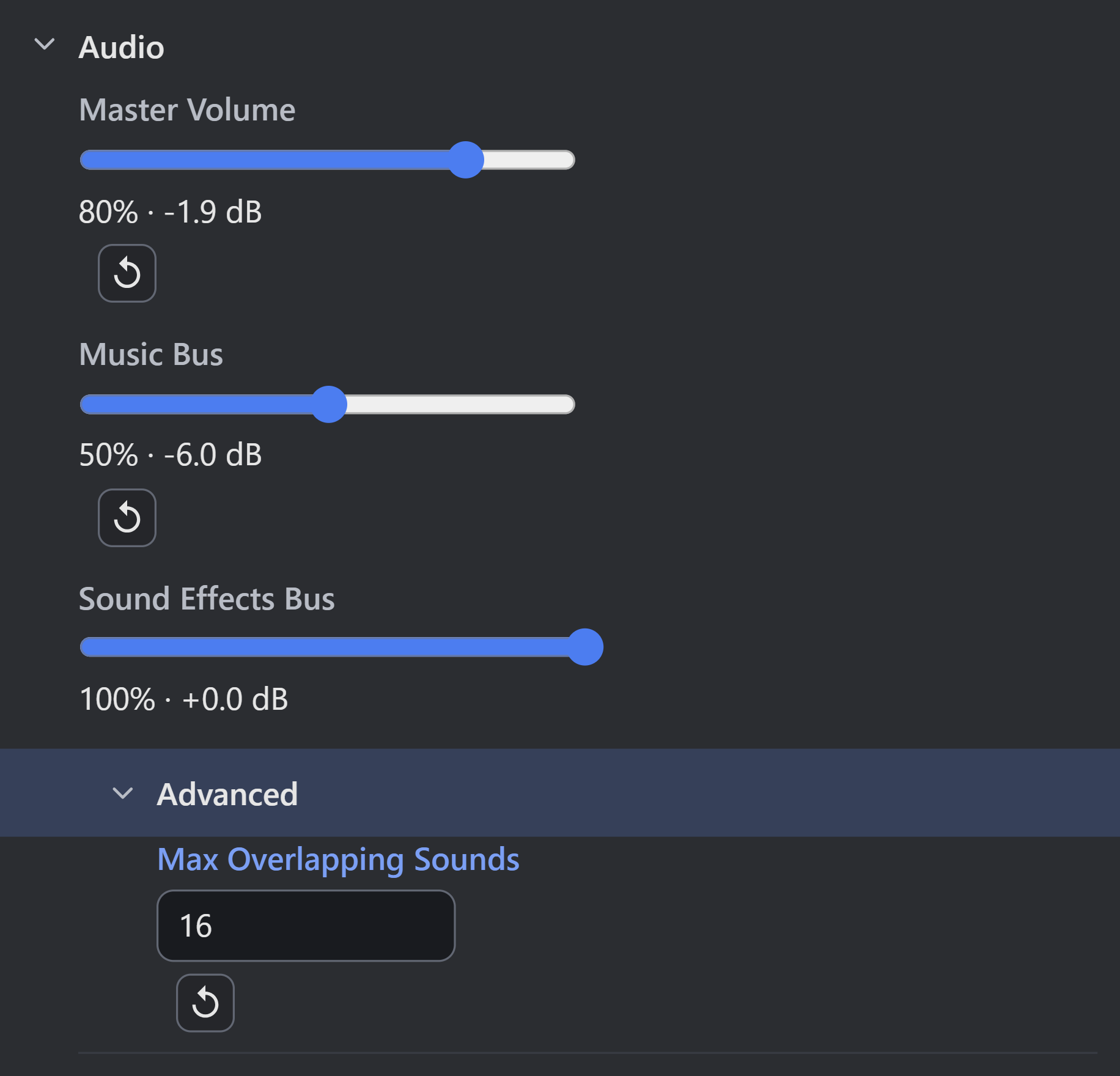
- Master Volume: 80% multiplies both buses.
- Music Bus: 50% multiplies music resources.
- Max Overlapping Sounds: 16 limits Sound Effect voices.
Expected result: both routes include the master multiplier, and only Music includes the 50% Music Bus multiplier. At resource Volume 100%, with ordinary gain and no additional modifiers, the Music’s level multiplier is 1 × 0.5 × 0.8 = 0.4; the Sound Effect’s is 1 × 1 × 0.8 = 0.8. These are signal-level multipliers, not equal percentages of perceived loudness.
| Control | Default, Range, and Meaning |
|---|---|
| Master Volume | 100%; range 0–100% in one-percentage-point steps; multiplies both buses. |
| Music Bus | 100%; same range; affects Sounds routed as Music. |
| Sound Effects Bus | 100%; same range; affects Sounds routed as Sound Effect. |
| Max Overlapping Sounds | 32; whole-number range 1–64; limits simultaneous Sound Effect voices. |
The readout also displays decibels: 100% is 0 dB, 50% is approximately −6 dB, and 0% is silence. Sound gain, per-clip settings, fades, spatial attenuation, and runtime Actions can further affect a live voice.
Verify Bus Routing
Play a Music resource and a Sound Effect, then set Music Bus to 0% for a fresh comparison. Music should be muted while Sound Effects remain available. Restore Music, then compare with Master Volume: 0%; both routes should be muted. Restore the intended starting mix afterward.
Resource Type selects routing. A resource named Music can still route to Sound Effects if its Type is Sound Effect. Naming and Loop do not select the bus. In-game volume Actions operate on the live mix; editing starting settings does not replace every runtime volume change. Restart playtest when comparing boot defaults.
Control Overlapping Voices
Max Overlapping Sounds caps simultaneous Sound Effects. Music is outside this cap. At the cap, an incoming effect replaces a lowest-priority active effect if its Priority is equal or higher. A lower-priority incoming effect is dropped. Sound Priority uses 0–255, with default 128; larger values protect more important cues.
For a controlled comparison, temporarily choose a small cap and trigger several sustained effects with different priorities. Confirm that important cues remain audible and that repeated Step-driven playback is not accidentally consuming the cap. Restore the intended cap afterward. Increasing the cap can add audio processing cost and does not repair an Event that plays the same cue every frame.
Use deliberate single activations for one-shot cues. Provide a matching stop operation for looping playback, and test Scene changes, interruption, and replay. Music playback and crossfade behavior require the appropriate Audio Actions; the bus level alone does not create a music lifecycle.
Apply a Bus Effect Preset
- Expand Effects > Music Effects.
- Select Preset: Cave.
- Inspect the enabled Reverb and Filter cards and the bus summary.
- Select Test to play the native chime through that bus’s chain.
- Compare Preset: None, then reselect Cave if required.
- Start a fresh game and play the actual Music resource. Compare it with a Sound Effect to confirm the effect applies to the intended route.
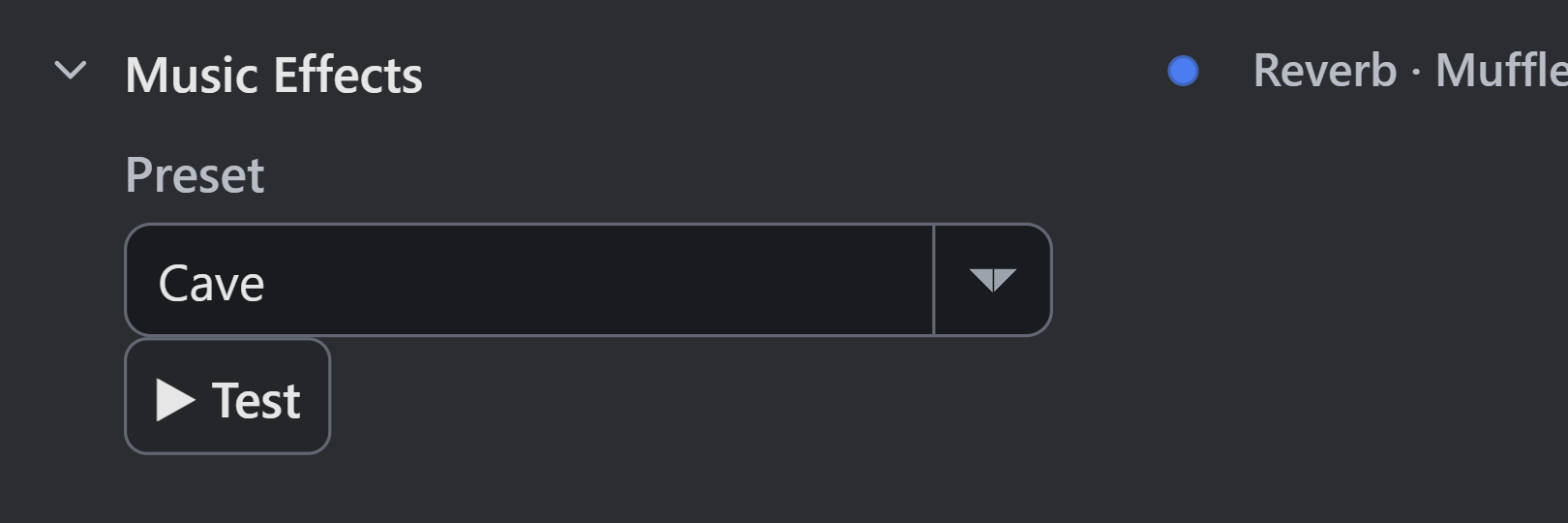
- Preset: Cave replaces this bus’s entire effect chain.
Expected result: Cave applies its preset chain to Music. Music also passes through Master Effects, so a Master effect can process it again. Sound Effects uses its own chain before Master. Selecting a preset replaces the entire chain on the selected bus and auditions it immediately; inspect existing custom settings before replacing them.
Adjust Individual Effects
All effect switches default to Off. The defaults below describe an enabled card before a preset or custom change; enabling an effect does not imply that its controls are at zero.
| Effect | Controls, Units, and Limits |
|---|---|
| Reverb (room echo) | Amount 0–100%, default 30%; Room Size 0.1–8 s, default 1.5 s, controls the decay tail. |
| Echo (delay) | Amount 0–100%, default 30%; Delay 0.02–2 s, default 0.3 s; Repeats 0–90%, default 35%, controls feedback. |
| Filter (muffle / thin / radio) | Muffle (Low-Pass), Thin (High-Pass), or Radio (Band-Pass); Cutoff 40–16000 Hz, default 800 Hz; Sharpness 0.1–12, default 1. |
| Tone (EQ) | Bass, Middle, and Treble each −12 to +12 dB, default 0 dB. |
| Distortion (crunch) | Drive 0–100%, default 30%. |
| Compressor (evens out loudness) | Strength 0–100%, default 50%. |
The chain processes Tone, Distortion, Compressor, Filter, Echo, then Reverb. Effect order is fixed. Amount is an effect-mix control; changing it is not equivalent to changing bus volume. Repeats is feedback, not a whole-number repeat count. Room Size controls the reverb tail’s duration.
Test one effect at a time with actual game sources. Master and bus chains can compound processing. A low cutoff, overlapping source fades, low resource volume, and a quiet bus can combine into a difficult-to-hear result. Use None and known levels as a diagnostic baseline.
Verify Saved and Published Behavior
Save and reopen the project. Confirm the three levels, cap, preset or Custom status, and enabled cards. Retest fresh playback, overlap, stop, Scene changes, and runtime mix Actions. In the published browser game, begin with the intended player interaction and verify audio output; browser autoplay restrictions can defer sound until interaction.
The native Test chime checks the selected effect route with a synthesized source. It does not exercise the game’s Event, resource decoder, spatial position, loop, or Scene lifecycle. Listen to the real published game before accepting its final mix.
Troubleshooting
| Symptom | Diagnosis and correction |
|---|---|
| Every source is silent | Check Master Volume, device output, browser interaction, decoding, and playback execution. |
| Only Music is silent | Check resource Type, Music Bus, playback Action, source interval, and Music Effects. |
| Some effects disappear during busy gameplay | Check the cap, resource Priority, overlap duration, and repeated Event execution. |
| Cave also seems to affect unrelated sounds | Check Master Effects and each resource’s Type; Master processing applies after both buses. |
| Custom changes disappear after a preset selection | The preset replaced that bus’s whole chain; recover with Undo or the saved checkpoint. |
| Test works but the game is silent | Check the game’s Event, enabled Logic attachment, selected resource, and runtime mix changes. |
| Native playback works but web playback does not | Test the first player interaction, supported source decoding, requests, and published-browser output. |
Myth Engine Documentation