
Timers and Delayed Actions
Start pulse on Marker and watch its firing count in the Debugger Console. Then restart it and stop its messages.
How the Parts Fit
You save the timer’s starting instructions and its matching Event handler together in a Logic Component. When the game runs, each live Object keeps its own timers.
Marker’s Create Event starts pulse. Its Recurring Timer Event handles each firing.
- Report Ready
You save a start Action and an Event whose filter matches the timer name.
start a run
Marker runs pulseCreate starts Marker's pulse. Recurring Timer receives pulse and prints its count.
your stop Event
Stop pulseStop Recurring Timer cancels pulse on the same Marker.
Prerequisites
Use one active Marker in Main, with Report Ready attached and enabled. Follow the Logic Editor guide for setup. In Marker’s Logic tab, select Report Ready and leave Pause Mode at Pausable. Keep ordinary game speed and Object time settings for this example.
Add Actions to the selected Event’s Mode 1. Connect each Action to the sequence. If a block sits loose, right-click its header and choose Connect to Sequence.
Start and Check a Named Timer
- Select Create in Report Ready. Search the Action List for Start Recurring Timer and add it.
- In the Action header, choose Self as the target. Enter
pulsefor Timer Name. - Enter
1for Repeat Every (s). Leave First Delay (s) blank and Ring Once at No. - Choose Add Event, search for Recurring Timer, select it, and confirm with OK.
- Choose Type a timer name…, confirm, enter
pulsein Timer Name, and confirm again. - Add and connect Print Debugger Message. Enter Message
Marker {event.timer} interval={event.interval} count={event.count}. Keep Category General and Type Log.
Keep the braces around each Event value so the Message prints the name, interval, and current firing count.
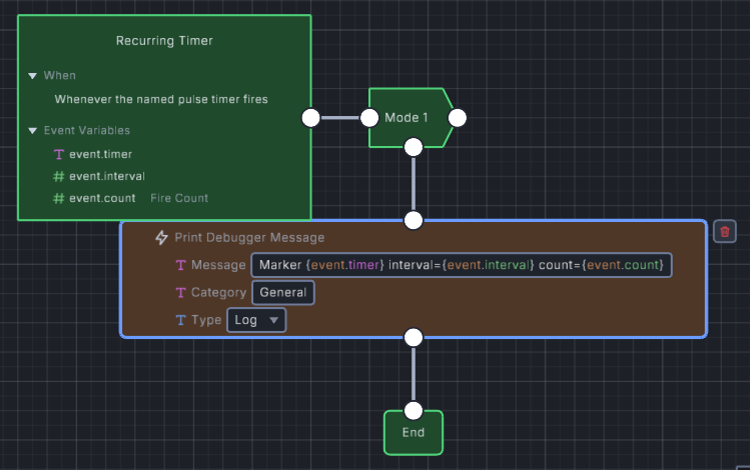
- The Event filter matches pulse.
- Braces insert the current Event values into the Message each time the timer fires.
- Category General and Type Log are selected.
EventCreate, Mode 1
- Start Recurring Timer
- On
Self- Timer Name
pulse- Repeat Every (s)
1- First Delay (s)
blank- Ring Once
No
End
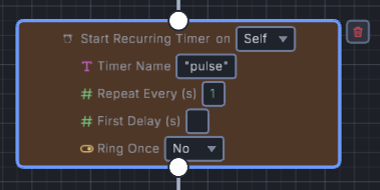
- Self selects the live Marker that runs this Action.
- Repeat Every sets later firings; blank First Delay uses it for the first firing too.
- Ring Once stays No.
Save the project, start a fresh Debug Play, then clear the Console’s text and category filters.
Watch for Marker pulse interval=1 count=1, then counts 2 and 3.
Leave First Delay blank to use Repeat Every for the first firing as well as later firings. The first firing waits one simulation second.
Stop the run before editing the example. Save your edits and start another fresh run to try them.
Restart or Stop Repeated Work
Starting pulse again on Marker replaces its countdown and resets its count.
Give the restart a First Delay of 0.75. Its next firing waits that delay and starts at count 1.
To try this automatically, add Set Alarm to Create, after Start Recurring Timer.
Choose slot 0 and Seconds 3.4. Add an Alarm Event with filter 0, then connect these Actions in order.
EventAlarm 0, Mode 1
- Print Debugger Message
- Message
RESTART pulse
- Start Recurring Timer
- On
Self- Timer Name
pulse- Repeat Every (s)
1- First Delay (s)
0.75- Ring Once
No
- Set Alarm
- Alarm (0-11)
1- Seconds
2.4
End
Add another Alarm Event with filter 1. Connect Stop Recurring Timer, targeting Self with Timer Name pulse.
Follow it with Print Debugger Message, Message STOP pulse.
Run again. Pulse reaches count 3 before RESTART pulse, then prints counts 1 and 2.
After STOP pulse, wait longer than one simulation second. No further pulse message appears.
Choose the Timer Behavior
| Choice | What changes | When to use it |
|---|---|---|
First Delay 0.75 |
The first firing waits 0.75 seconds; later firings keep Repeat Every. | Begin sooner than the normal repeat interval. |
| Ring Once Yes | The named timer fires once, then stops. | Schedule one delayed task by name. |
Stop Recurring Timer, pulse |
Stops this exact name on the chosen owner. | Cancel one task and keep its other timers. |
| Stop All Recurring Timers | Stops all named timers on the chosen owner. | End that owner’s repeated work together. |
| Set Alarm | Uses a separate numbered slot and Alarm Event. | Schedule work identified by slot 0–11. |
Start timers from discrete Events such as Create or an Alarm.
Starting pulse again from every Step can keep resetting its first delay, leaving no chance for the next firing.
Configure a Numbered Alarm
Alarm 0 above waits for 3.4 simulation seconds before running its matching Event and restarting pulse. Setting another slot gives it a separate countdown.
Stop All Recurring Timers leaves numbered Alarms running.
For example, an Alarm 3 set to 8.8 seconds still fires after a Stop All at 7.3 seconds.
To repeat an Alarm, set its slot again from an Event.
Pause and Game Speed
Set Game Paused 1 pauses gameplay; 0 resumes it.
Gameplay pause holds Marker’s Pausable timer at its current count and remaining delay.
Resume continues that countdown.
At game speed 0.5, the countdown advances at half its normal rate, while Event interval still reports 1.
See Logic Component pause modes for timers that run during pause.
Troubleshooting
| Symptom | What to check |
|---|---|
| No pulse messages | Check the enabled attachment, positive repeat interval, connected Actions, matching name, and Console filters. |
| Count returns to 1 | Look for another Start Recurring Timer Action or a fresh run. |
| Stop leaves another Object printing | Each live Object owns its timers. Target the Object that started this pulse. |
| First firing comes sooner | Check First Delay; blank uses Repeat Every. |
| An Alarm fires after Stop All | The numbered Alarm uses a separate system. |
Where to Look Next
See Timer Actions and Time Events for exact fields. Crystal Cascade’s Piece Gravity combines a repeating gravity timer with a one-shot lock delay.
Myth Engine Documentation