
Scene Transitions and Lifecycle
Scene navigation replaces the current Scene with a selected Scene or another Scene in the project’s order. The navigation Action, visual transition, traveler placement, and lifecycle Events have separate responsibilities. A Scene change is not a persistent game save.
Prerequisites
- Two existing Scenes, such as Main and Second, with visibly different content.
- Main selected as the startup Scene.
- A live Object in Main with an enabled compatible Logic attachment.
- A discrete input or interaction Event that can request the change once.
Use Player Commands and Input to configure a Button Command such as Advance. Verify its diagnostic before adding navigation. Save the project before changing Scene order or introducing arrival transfers.
Navigate to a Named Scene
- Open the attached Logic and select Command Pressed > Advance.
- Add Go to Scene, under Scene Management > Scene Flow.
- Choose Second in Scene. Leave Spawn at Object blank for an ordinary destination startup.
- Choose Cut first. Start Debug Play from Main and press the bound input once.
- Confirm Second’s distinct content and its Scene Start diagnostic. Restart the playtest from Main before comparing transition styles.
- Change Transition to Fade and Transition Seconds to
0.4; repeat the operation.
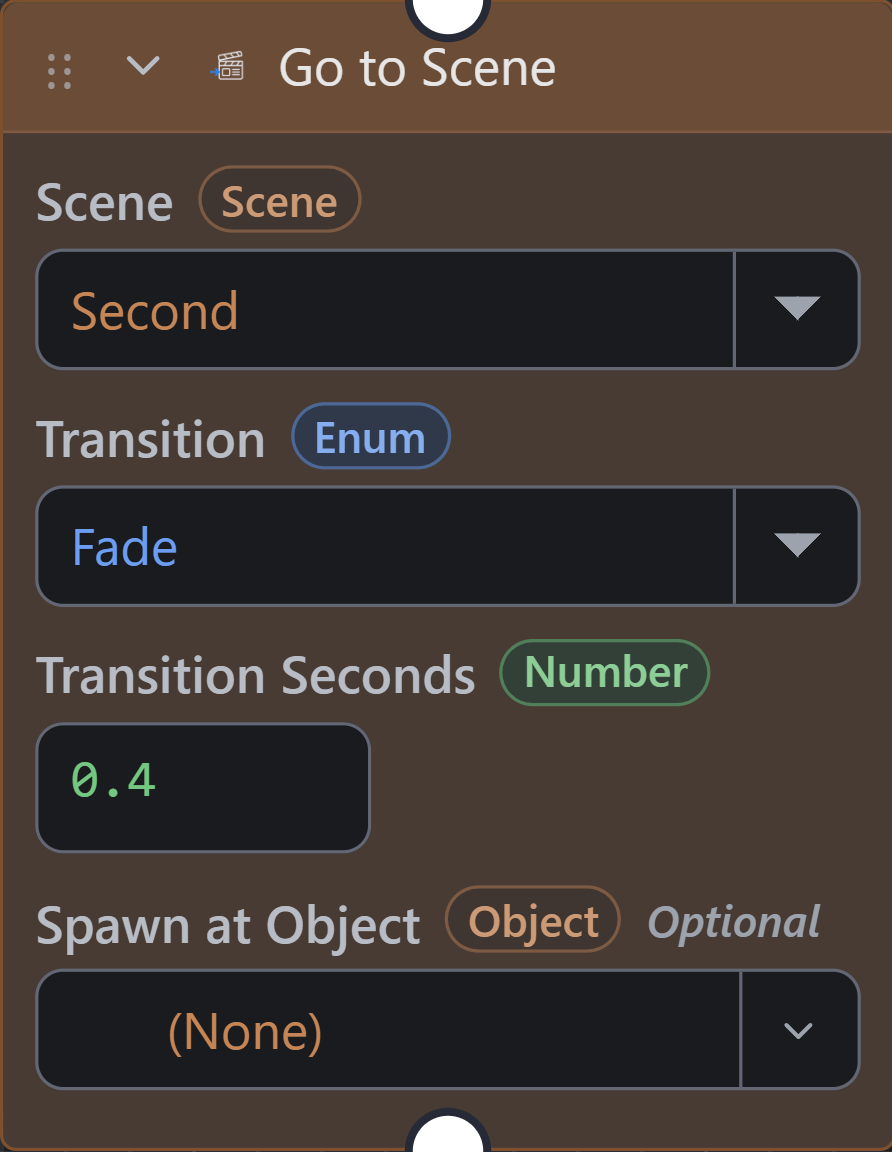
- Fade uses 0.4 seconds to black and another 0.4 seconds back.
- Transition Seconds controls the duration of each fade half.
| Logic Card | Configuration |
|---|---|
| Event | Command Pressed; Command: Advance |
| Action | Go to Scene; Scene: Second |
| Presentation | Transition: Fade; Transition Seconds: 0.4 |
| Arrival | Spawn at Object: blank for the first check |
| Expected result | Main leaves; Second starts; the fade covers both sides of the handoff. |
Use a discrete Event or an admission condition for navigation. A continuously held input or repeating overlap can request another handoff after the destination starts. A transition’s duplicate-request guard does not replace appropriate gameplay Logic.
Understand Transition Timing
| Transition | Meaning of Transition Seconds |
|---|---|
| Cut | Switches directly. A duration does not create a fade. |
| Fade | Duration of each half: fade to black, perform the handoff, then fade back. 0.4 specifies 0.4 seconds for each half, plus any required preparation. |
| Crossfade | Duration of the dissolve from the outgoing snapshot to the incoming Scene. 0.4 specifies one 0.4-second dissolve. |
Transition Seconds defaults to 0.4. A nonpositive duration uses an immediate change. Crossfade uses an outgoing rendered snapshot; when a snapshot cannot be obtained, the runtime falls back to a cut. Asset preparation can extend the handoff beyond the configured visual duration.
Check: compare Cut first, then Fade, then Crossfade on the published target. Check both Scene identity and presentation; a successful Scene switch alone does not verify rendered fade or snapshot quality. Inspect incoming art readiness, UI overlays, input, and audio during the change.
Check Lifecycle Order
Add identifiable Scene Start and Scene End diagnostics to eligible attached Logic. Use different labels for the outgoing and incoming Scenes so repeated execution is visible.
The outgoing Scene End occurs when that Scene starts leaving. Incoming Scene construction creates its eligible instances and runs their creation behavior; Scene Start identifies the new active Scene’s startup. A destination’s creation or start workflow that immediately navigates again can make the intended Scene appear to be skipped.
Instance-local runtime values and timers belong to their lifecycle. Keep cross-Scene state in an appropriate retained scope and explicitly initialize destination behavior. Inspect globals and persistent save Actions separately; Scene replacement alone does not guarantee data survives a game restart.
Place a Traveler at an Arrival Marker
Spawn at Object uses an Object resource in the destination Scene as the arrival marker.
- Create or identify a destination marker Object with an unambiguous name, such as FromMain.
- Place one FromMain occurrence at the intended arrival location in Second. Verify its world position and Camera framing.
- In Go to Scene, select Second and set Spawn at Object to FromMain.
- Trigger the navigation from the intended traveler or the intended doorway interaction.
- Verify the arriving Object resource, position, visibility, collision participation, and attached Logic. Repeat the return trip.
The runtime uses the first matching marker instance. Avoid multiple indistinguishable markers when arrival must be deterministic. If the destination contains no instance of the traveler, the transfer can create one there.
When a fixed or Sensor doorway runs the Action from a collision, the touching Other Object can be the traveler. Otherwise the acting Object is used. A Scene controller invoking the Action therefore requires careful target design; inspect the Go to Scene contract before treating a controller as the player.
Use Relative Navigation and Restart
Next Scene and Previous Scene use the compiled project Scene order. They perform a direct change; the current Scene’s screen position or editor selection does not determine the order. At an order boundary, there is no adjacent destination to enter. Inspect order explicitly when inserting Scenes.
Restart Scene recreates the current Scene through a cut. It restarts that Scene’s instances and startup behavior; it does not imply a fresh game, deletion of saved progress, or restoration of every retained global value.
Check: test the first and last Scene boundaries, restart after changing an instance value, and compare retained globals separately. Repeated creation and Scene Start diagnostics should correspond to the actual Scene lifecycle.
Coordinate Saving, Menus, and Input
Save On Scene Change is a separate project setting. Explicit Save Game and Load Game workflows have their own slot, existence, and restoration requirements. Verify first-run and restore paths separately.
Close or reconfigure menus and Input Contexts deliberately. A Scene change does not express which gameplay mode is intended. Check the destination’s active contexts, pause policy, UI visibility, Camera binding, and continuing audio.
Troubleshooting
| Symptom | Diagnosis and Verification |
|---|---|
| Nothing changes | Verify the triggering Event, enabled attachment, live Object, selected destination, and debugger diagnostics. |
| The destination is entered and immediately left | Inspect destination Creation, Scene Start, held-input, and collision workflows for another navigation request. |
| Fade takes longer than twice the entered value | Separate the two fade halves from asset preparation and destination setup. |
| Crossfade behaves like a cut | Check positive duration, available rendered snapshot, graphics context, and actual target-browser output. |
| An arrival uses the wrong marker | Inspect marker resource name and the first matching destination occurrence; remove ambiguous duplicates. |
| The doorway travels instead of the player | Inspect acting Object, doorway Collider role, collision Other context, and the configured transfer. |
| A traveler exists but is invisible | Check destination placement, Camera/View, play visibility, active state, and applicable component overrides. |
| Next Scene chooses an unexpected destination | Inspect the compiled Scene order; it determines relative navigation. |
| Restart preserves progress unexpectedly | Separate instance reinitialization, retained globals, and stored save slots. |
| Controls stop after arrival | Verify destination Logic attachments, context activation, game focus, and game pause. |
Myth Engine Documentation