
Accessible Game Model
Describe your Scene and give an existing Command another keyboard route. When you run the game in Active mode, the Scene description reaches its live region and both keys reach the same Command.
How the Parts Fit
Semantic records hold the descriptions you write and connect them to resources through pickers. Alternate routes add keys to existing Commands. Your Logic still handles those Commands.
- Describe and Connect
Save a Scene record and an alternate Command key.
configure
Choose ActiveKeep projection enabled. Turn on the output you will test.
run
Start a New RunRead the Scene announcement and try both Command keys.
- Shadow
Inspect the records while preparing assistive behavior.
Start With a Working Warning
Start with a game that shows a warning and closes it through a Button Command. The example calls its Scene Scene and its Command Warning Acknowledge.
Before changing Accessibility, run your game and press its ordinary Space key. The warning should close. To build this connection, see Commands and Events and Actions.
In Game Settings, choose Input Manager and check Warning Acknowledge. Its input type is Button. Space is the ordinary physical input, and the Command belongs to your active Input Context. Enter will be its alternate key. Both keys will reach your existing warning Logic.
Describe the Scene
Open Game Settings, choose Accessibility, then choose Enable Accessible Game Model to add the optional records. Opening the category alone leaves an ordinary project unchanged.
Keep the runtime mode on Shadow while you fill the records. Under Semantic Records, add an item to Scenes and fill it with the values below.
| Field | Example Value | What It Does |
|---|---|---|
| Id | warning_scene |
Identifies this semantic record. |
| Resource Ref | Your Scene resource |
Connects the record to the actual Scene. |
| Label | Warning study |
Names the Scene in its announcement. |
| Description | A warning has an alternate acknowledgement route. |
Describes the Scene. |
| Instructions | Press Space or the alternate Enter key. |
Tells the player what to do. |
Choose the Scene through Resource Ref. The picker stores its identity and expected resource kind. If validation reports a missing or wrong-kind resource, select the intended resource again.
Add Enter
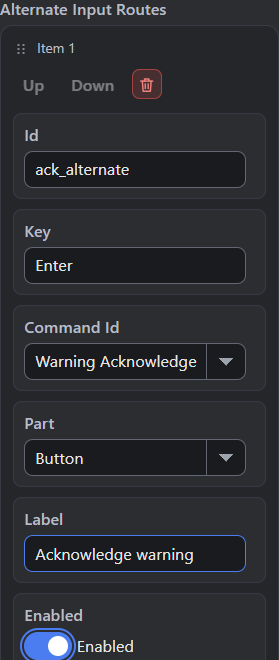
Expand Alternate Command Routes and choose Add Alternate Route. Enter these values:
| Field | Example Value |
|---|---|
| Id | ack_alternate |
| Key | Enter |
| Command Id | Warning Acknowledge |
| Part | Button |
| Label | Acknowledge warning |
| Enabled | On |
The alternate key targets the existing Command, so its part must match that Command’s input type. This example uses Button for both.
Choose What Runs
Keep Enable Accessibility Projection for Run and Export on. Choose Active when you are ready to test the example. Under Player Presentation and Motion, keep Scene Announcements and Live Region Output on.
| Choice | What Changes | When to Pick It |
|---|---|---|
| Shadow | Projects the records for inspection. Assistive output and alternate keys stay inactive. | While preparing records. |
| Active | Applies the configured assistive behavior and enabled alternate routes. | When testing the player’s task. |
| Projection off | Leaves accessibility data out of the next Run or Export. | When comparing ordinary behavior. |
| Live Region Output off | Omits the live region used for announcement text. | When checking your output settings. |
| Scene Announcements off | Skips automatic Scene announcements. | When your game supplies another tested introduction. |
Save the project. Stop the current run and start a new one after changing these settings. For an exported game, export again and open the new build.
Check the Result
Start in Scene. Its announcement joins your label, description, and instructions in a live region for assistive software to read. Test your players’ devices and software.
Press Space to acknowledge the warning, then restart the task and try Enter with the same warning. Both routes should close it. Check cancellation, feedback, and return to gameplay too.
Expand Alternatives Test Matrix and Known Limitations to record the ordinary task and its equivalent route. Add a verification case with the task, expected result, actual status, and evidence. Keep an untested case on not run. Record unsupported devices and untested combinations in Known Limitations.
Read the validation rail. Repair errors, then read each warning. A passing task needs its recorded result as well as valid resource and Command references.
Other Settings and Limits
Canvas Label names the game canvas for assistive software. Under Player Presentation and Motion, Suppress Camera Shake and Suppress Full Screen Flashes control those effects in Active mode. Test your game’s actual effects.
Semantic descriptions and equivalent-alternative records need gameplay connections and player testing. A sound-only warning needs a visible warning with the same meaning and enough time for players to read it.
If a route does nothing, check the active Input Context, Command part, and listening Logic. Check Active mode and projection too. For missing announcements, check Scene Announcements, Live Region Output, and the Scene resource selected in the record.
A newer accessibility schema can be preserved while editing is refused; use a compatible engine to edit those records.
See Accessibility Actions for the exact announcement and cue fields. The Weighted Maze Find Route example connects a UI request and a Command to the same gameplay operation. Its visible feedback is a useful starting point for your own task checks.
Myth Engine Documentation