
Publish Again Safely
Publish again to update a release folder. Keep a recoverable copy first. Read file conflicts before accepting replacement. Test the new output before sharing it.
Managed Output and Conflicts
Myth records generated paths and their file digests in .myth-export-manifest.json.
It uses that record when publishing another Web Folder or native source project into the same destination.
Unchanged generated files can be replaced without a prompt.
An edited file needs a decision when the next export would write its path. Myth lists the conflict and asks whether to replace it. Files outside the new output have different rules, shown below.
- Saved project
Save My Game and test a fresh run in Main.
Publish again
Existing folderChoose the previous destination. Read any replacement prompt.
write and test
Checked releaseRun the updated output and test its normal controls.
- Custom files
Keep a recoverable copy of changes before replacing generated files.
Before You Update
Use an existing playable project and its previous export.
This example updates My Game, starting in Main, in a Web Folder named My Game Web.
Use your own project and destination names.
Save the source project and test a fresh run. Keep a separate copy of the last accepted release folder. Preserve custom wrapper code, configuration and signing files too. Your backup should remain available if the next write fails.
Use the Myth desktop app for folder publishing. Publishing requires a valid Full Edition entitlement; see Licensing Terms. Review publishing targets if the intended output has changed.
Update an Existing Destination
- Open Game Settings in the Resource Tree. Choose Publish.
- Select Web and set Format to Web Folder (Offline) for this example.
- Review Folder Assets, PWA Files and Write Web ZIP. These settings affect the next export. Save the project.
- Click the toolbar Publish button. Choose the existing
My Game Webfolder. - If a replacement prompt appears, read its listed paths. Choose Keep Existing Files while custom changes still need preserving.
- Review your copies and confirm the destination. Publish again and choose Replace Files when the listed replacements are intended.
- Compare the updated folder with the previous release. Check the entry file, required assets and custom files.
- Run the updated output outside the editor, then complete the release checks below.
For example, a manual change to index.html makes it a conflict at that planned output path.
Choosing Keep Existing Files cancels the export and leaves the destination unchanged.
Choosing Replace Files lets Myth write its generated entry file there.
An unrelated release-notes.txt stays in place.
The prompt applies to the listed replacements as a group. Preserve your intended custom content before accepting. Use a new dedicated destination when you want to compare a fresh export with the previous folder.
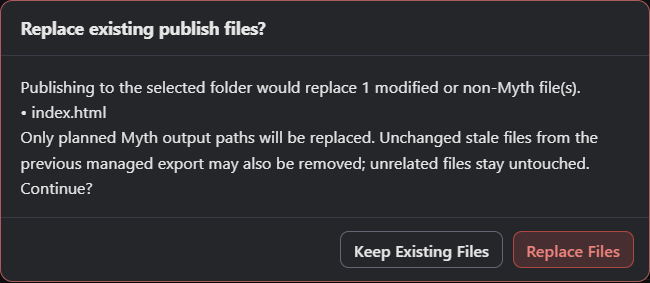
- index.html is the modified planned file in this example.
- Keep Existing Files cancels this export.
- Replace Files accepts the listed replacements.
Choose the Previous Destination
Web Folder writes directly into the folder you choose. A native source project has a named folder inside your chosen parent. Keep that distinction when publishing again.
| Output | What to choose again | What Myth updates |
|---|---|---|
| Web Folder | The existing My Game Web folder. |
Generated files directly inside it. |
| Electron, Tauri or Capacitor source | The same parent folder used for the first export. | The generated named source folder beneath it. |
| Single HTML or CDN HTML | The intended HTML file in the save dialog. | That exported file, using the file-save flow. |
For example, choose Native Releases to create Native Releases/my-game-electron.
Choose Native Releases again for the next Electron export with the same game title.
Myth reuses my-game-electron and checks its planned files.
An unrelated release-notes.txt inside that source folder stays in place.
Single HTML and CDN HTML use a file export. The folder manifest rules on this page apply to Web Folder and native source projects.
What Happens to Existing Files
An obsolete file is one generated before that the next export no longer needs. Myth removes it only while its contents still match the previous manifest. Modified obsolete files stay in place, so review them before sharing the folder.
| Existing file | Writer behavior | Your check |
|---|---|---|
| Unchanged generated file at a planned path | Writes the new generated file without a conflict prompt. | Check the updated content. |
| Edited or unrelated file at a planned path | Asks before replacing it. | Read the path and preserve intended changes. |
| Unchanged obsolete generated file | Removes it when the previous manifest is trusted. | Confirm the new release no longer needs it. |
| Modified obsolete file | Preserves it and reports that in Output. | Decide whether it belongs in the delivered folder. |
| Unrelated file outside planned paths | Preserves it. | Keep private notes and other unwanted files out of the shared release. |
| Missing, invalid or different-target manifest | Treats existing planned files as conflicts and preserves obsolete files. | Use a fresh destination or compare the remaining files explicitly. |
For example, turn PWA Files and Write Web ZIP Off after a release that used them.
The next export can remove their unchanged obsolete files.
An edited sw.js remains, along with unrelated notes.
Open Window > Show Output to read reported warnings.
Leave the manifest with the generated folder. Let Myth write its next record when publishing. The manifest manages local files; your web host and browser caches have their own update behavior.
Check Each Release
Serve the complete updated Web Folder, as described in Publish a Web Game. Wait for startup to finish. Check that My Game starts in Main and responds to its first normal input. Reload and test initialization again.
Continue through a normal round or level, including any Scene transitions and replay. Check audio after player input and any saved-state behavior your game uses. Test required external services with the intended connection. Keep the release that passed these checks.
For a hosted game, upload the complete accepted output and repeat those checks at its deployed address. Check paths and PWA update behavior where applicable. For native output, synchronize and rebuild the source project, then test the newly built application. Check its configured Version as well. See desktop and mobile publishing for that toolchain handoff.
Diagnose an Incomplete Update
If the writer reports a filesystem failure, keep the previous release and any reported recovery data. It stages output and attempts to restore affected files when a commit fails. Read the exact error before retrying. Check destination permissions, file locks and free space. Accept the release only after its complete files pass your checks.
If the local output works but a hosted game stays old, compare the served entry and assets with the accepted folder. Try a fresh browser session and inspect the PWA’s update behavior when used. For a native app, repeat its synchronization and build steps, then launch the new package.
Use the publishing overview for output choices and Testing Your Game for broader release checks.
Myth Engine Documentation