
Values and Things
Give Marker a Number named health and a Sprite reference named badge. Save and reopen it to find health = 3 and badge = Marker Art.
How the Parts Fit
A Value holds data, such as the Number 3. A Thing is existing project content or a reference created while the game runs. Its declared kind tells a field what it can hold. Marker Art is a Sprite.
The Object stores these starting values. Choose each Variable’s type before entering its value or selecting its resource.
- You chooseDeclared Type
Choose Number for health and Sprite for badge.
set the value
You enterStarting ValueEnter 3, then open badge's resource selector and pick the existing Marker Art Sprite.
save and reopen
You saveMarker ObjectSave and reopen Marker to check both stored choices.
Your Part
Use a 2D project containing Marker and its existing Marker Art Sprite resource. The Sprite Editor guide supplies the example image and its import steps.
Open Marker. Set Object Editor Mode to Components, then find Variables in the left Properties panel. Open that section if it is folded.
Set a Number and a Sprite
Under Per Instance Variables, click Add Per Instance Variable, name the entry health and press Tab. Leave Type as Number. Enter 3 in Starting Value, then press Tab to commit it.
Add another Per Instance Variable. Name it badge, then choose Sprite from the Type picker’s Things group. Its Starting Value initially shows None. Open the resource selector, choose Marker Art, and check that badge now names that existing Sprite.
Marker Art keeps its image and frames. A Sprite component selects which art an Object draws; this Variable stores a reference for Logic to read.
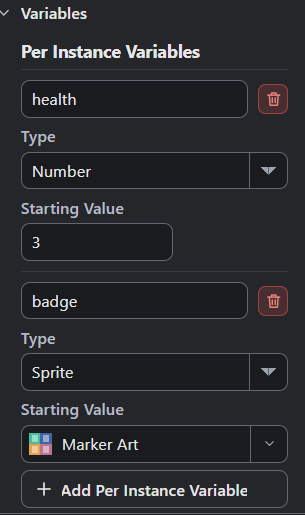
- health has Number type and Starting Value 3.
- badge has Sprite type, so its selector lists Sprite resources.
- Marker Art is the selected Sprite reference.
Save the project, close the editor, and reopen the saved file. Return to Marker’s Properties. health should still show Number and 3; badge should show Sprite and Marker Art.
Match a Declaration to Its Use
Choose a type for its job.
| Choice | What It Holds | When to Pick It |
|---|---|---|
| Number | Numeric data, such as health 3. |
Count or calculate with a quantity. |
| Text | Written content, such as a terrain’s name. | Store words or a label. |
| Boolean | A true or false value. | Store a yes/no decision. |
| Sprite | A reference to one Sprite resource. | Keep a picture choice such as Marker Art. |
| Instance | A reference to one live instance. | Keep a target supplied by running Logic. |
| Instance Set | References to a group of live instances. | Retain several targets together. |
A new Per Instance Variable starts as Number 0. Choose its type first. Changing an existing type converts or clears the old value according to the new type. Check it again.
For example, switching badge from Sprite to Sound clears Marker Art to None. After restoring Sprite, select Marker Art again. A Sound selector lists Sounds; a Sprite selector lists Sprites.
Starting values supply new instances. Save your edits and start fresh Play when testing Logic that uses them. For ownership and lifetimes, read Variables and Shared State.
Value Types
These eight types hold plain data, with numeric members for vectors and colors.
| Type | Data |
|---|---|
| Number | A numeric value. |
| Text | Written content, including empty Text. |
| Boolean | True or false. |
| Vec2 | X and Y. |
| Vec3 | X, Y and Z. |
| Vec4 | X, Y, Z and W. |
| Color | A hexadecimal color such as #ffffff; transparency can use eight digits. |
| ColorAlpha | R, G, B and A channels, each from 0 through 255. |
The receiving field determines which controls appear. ColorAlpha exposes separate channel values; color controls and transparency options depend on the field.
Thing Types
A Thing’s kind can be Sprite, Sound or Object. Reference tables may write thing:sprite; the Type picker labels it Sprite.
Project Things already exist in Resources. Choose the matching resource kind. A receiving field may also accept Text naming that resource, when its contract permits it. The name must resolve there.
Runtime Things are supplied while the game runs. A Collider reference, for example, identifies a collider on a live instance. Typing a project name creates no live reference.
Type rules can allow a Thing’s name or runtime identifier in Text. Use the receiver’s own control and read its contract before entering a name or expression.
Definitions and Live Objects
An Object resource describes reusable content to create; an Instance identifies one live instance in the run. Instance Set holds a group of those references.
Instance and Instance Set start at None. Get their live references from Events or Actions that supply them. Use reference operations to select, retain or test those targets.
Choose a field that supports the reference type; Data Tables cannot author Instance or Instance Set values. Compatible Variables and Data Structure fields can hold them. Their types have no arithmetic or Text conversion.
Function Parameters describe call arguments. Object Variables describe state. The Logic Components guide explains how attachable Logic declares the Object data it needs.
Interpret Empty Values Correctly
Set health to 0 and badge’s Starting Value to None, then repeat the save and reopen check. Both choices persist. Zero remains a Number, and None leaves the Sprite reference unassigned.
To keep this example, restore health to 3 and choose Marker Art in badge’s resource selector. Treat 0, false and empty Text as valid data of their declared types. None means no Thing is selected.
Where to Look Next
See the Sprite component reference for its Resource, Frame and Tint fields. A resource choice and its frame index have different types.
The Show Terrain Picture recipe uses a Sprite with Text terrain data and Number frames. Follow that lesson when you’re ready to use selected data in a game.
Myth Engine Documentation