
Particle Editor
A Particle resource defines a reusable effect containing one or more emitters. Each emitter has its own birth pattern, appearance, motion, and lifecycle. An Object’s Particle Emitter component carries an effect; Particle Actions can create bursts or start and stop ongoing effects during gameplay.
This page covers the 2D controls and a controlled burst. Particle Space: 3D exposes dimension-specific geometry and rendering controls; metre-based sizes in that space have different meanings from 2D texture scale.
Prerequisites
- An open project with playtest stopped and a Particle resource, named
Spark Burstbelow. - An active Object in a 2D Scene for the runtime check.
- An enabled Logic attachment with a discrete Event, such as activation or contact entering.
Create a Particle resource from Add, or open one from the Resource Tree. Keep Particle Space at 2D. In the right Emitters list, select Emitter 1 before changing its fields.
Locate the Controls
Particle Editor Mode switches between Emitter, Appearance, and Motion. Collapsed sections retain their settings; opening a section reveals additional fields. The live preview uses the selected resource, while Axis Grid, Guides, and BG: Dark help inspect it.
| Mode | Main Responsibilities |
|---|---|
| Emitter | Emission interval, quantity, burst count, particle cap, birth position and shape, sub-emitter selection. |
| Appearance | Particle Sprite, color source, blend/glow, frame animation, scale/alpha/rotation over life. |
| Motion | Lifecycle, speed and angle, forces, bounce bounds, death zones, and Path Motion. |
Time labels in this editor use milliseconds. A value of 500 ms is half a second. Speed uses metres per second in the standard 2D metre-based project; positions and birth-area dimensions use metres. Action timing fields can use seconds, so inspect each field’s declared unit.
Configure a Controlled Burst
- Choose Emitter.
- Set Burst Count to
8and Max on Screen to20. - Keep the initial Emit Every Ms
40and Per Emission2; manual emission will bypass that continuous schedule. - Choose Motion, then expand Lifecycle.
- Set both bounds of Each Particle Lives Ms to
500. - Enable Manual Burst Only and retain Linger After Life Ms
0. - Select Burst in the preview toolbar and inspect the birth area, motion, and fade.
Expected result: the effect is configured for bursts of eight, with a fixed half-second particle lifetime. The preview can repeat a manual effect for inspection; the game’s burst count is controlled by the actual Action invocation.
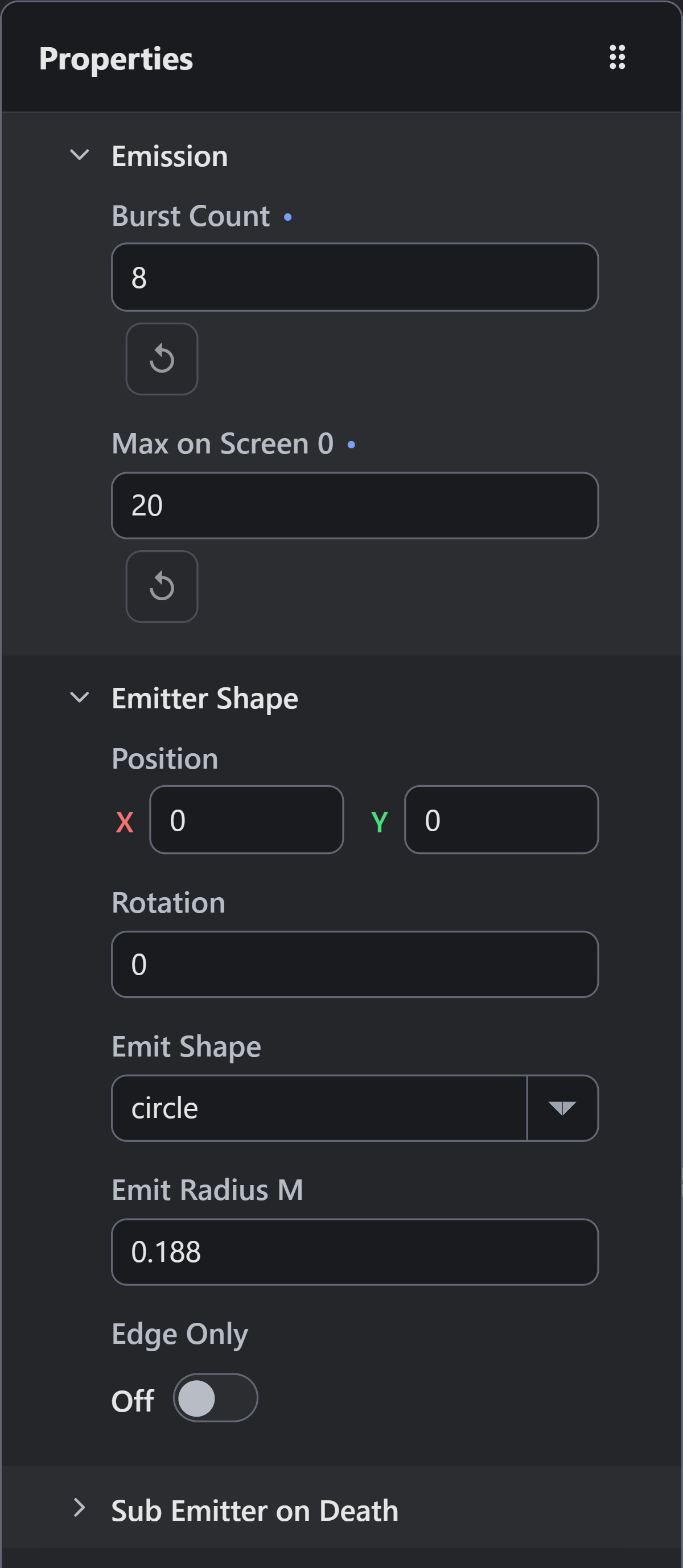
- Burst Count: 8
- Max on Screen: 20
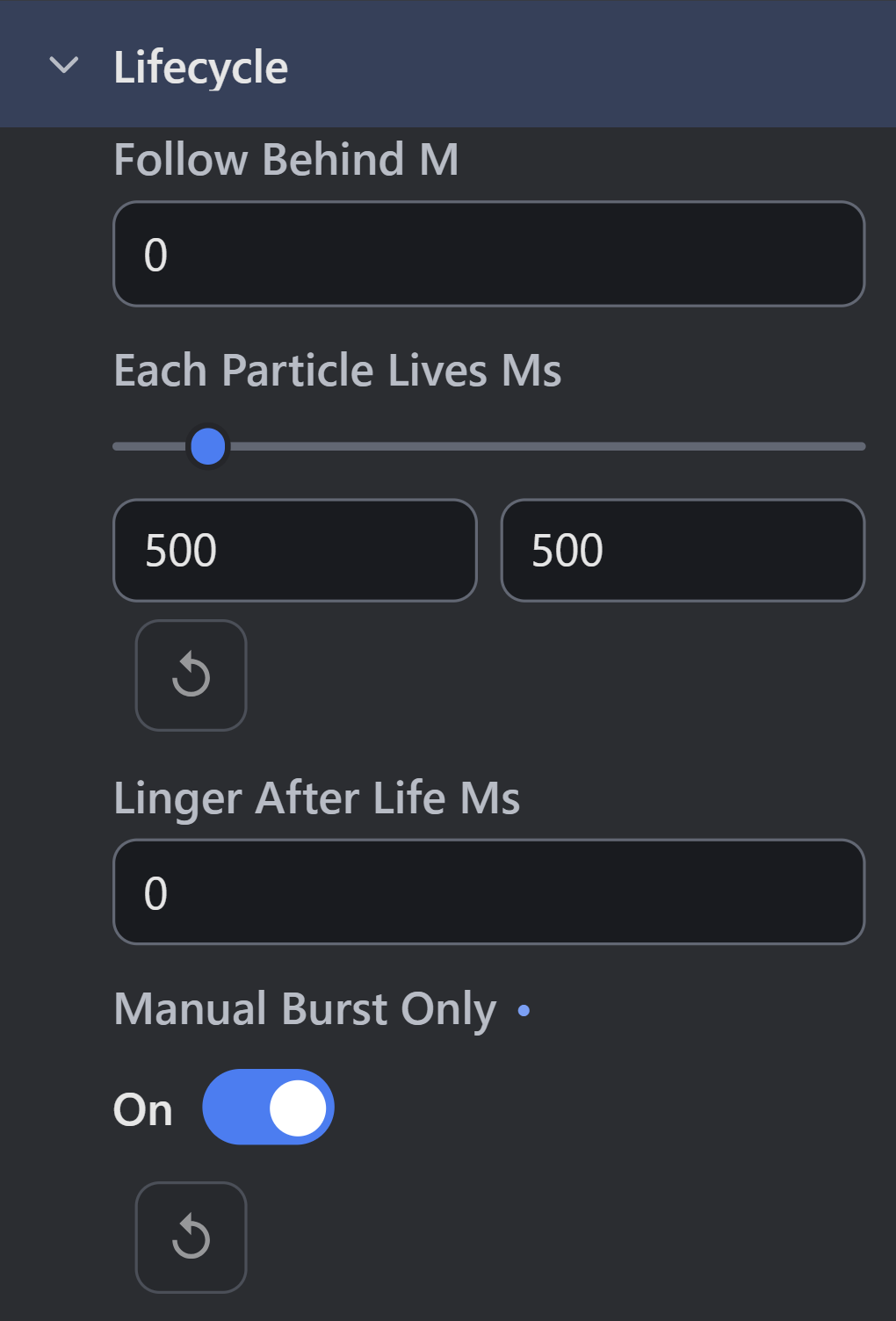
- Both lifetime bounds: 500 ms
- Manual Burst Only: On
When continuous emission is enabled, approximate births per second are 1000 ÷ interval × Per Emission. The initial 40 ms interval and quantity 2 produce approximately 50 particles per second. Longer lifetime increases the simultaneous population even when that birth rate stays unchanged.
Max on Screen 0 means no authored cap. A cap helps control density, but must be tested with simultaneous effects and the actual game’s performance. Burst Count defaults to 24 in a new 2D resource; a Logic Action can supply an explicit count instead.
Set Birth Shape and Motion
Emitter Position, Rotation, and Emit Shape define where particles begin. Point emits at an origin; Circle, Rectangle, Ellipse, and Line distribute births across their geometry. Edge Only restricts births to the shape boundary where applicable. These fields set the emission area. Configure the Object’s Collider separately.
Motion Speed M S supplies minimum and maximum initial speed. Use Angle and Angle Deg > Min / Max define the emission direction range. In 2D authoring, positive Y points up. Gravity and acceleration use metres per second squared; they affect particle motion after birth.
For a repeatable comparison, use equal speed bounds and a narrow angle range. Keep forces disabled until the initial direction is correct. A full-circle angle range sends particles in every direction.
| Motion Section | Behavior and Interaction |
|---|---|
| Lifecycle | Particle lifespan, lingering, manual emission, emitter duration, start delay, and pre-advance. Initial lifespan is 600–1000 ms. |
| Emitter Runs for Ms | Continuous emission interval length; 0 runs indefinitely. Existing particles can outlive emission. |
| Stop After Count | Stops continuous births after a count; 0 adds no count limit. |
| Repeat | Appears for a finite emission duration. Count includes the first run; pause is separate from active emission time. |
| Forces | Gravity/acceleration, drag, limits, attraction and related motion controls. Add one influence at a time when diagnosing trajectories. |
| Collision and Bounds | An authored bounce box. It is independent of the Scene’s ordinary Object and tile collision setup. |
| Death Zone | Removes particles according to its selected shape and entry/exit behavior. |
| Path Motion | Emit Along Path, Follow Path, or Emit and Follow. Requires a Path resource and matching travel/end settings. |
Start Already Running Ms advances an effect at creation so continuous rain or snow can begin populated. It differs from a start delay, which postpones emission.
Configure Appearance Over Life
Choose Appearance. A built-in Soft Dot permits an initial check without a Sprite dependency. Particle Sprite can select imported art. Inspect the Sprite’s frame layout before enabling Random Frame, Cycle Frames, or Play Animation.
Color Source selects Solid Color, Multiple Colors, or Gradient Over Life. Blend offers Normal, Additive (Glow), and Multiply (Darken). Use Normal when assessing the authored color; additive results depend on the background and overlapping particles.
For 2D effects, Scale is a multiplier of the texture’s natural size. Alpha ranges from 0 to 1. The initial Scale and Alpha both run from 1 to 0, so particles shrink and fade. Start/end values and their ease settings apply when the corresponding curve is off. Enabling Scale Curve or Alpha Curve replaces that simple interpolation with authored curve points. Random bands add a per-particle variation between curves.
Rotation is in degrees. A round Soft Dot can make rotation changes difficult to see; use asymmetric textured art to verify spin. Random Spin and a start/end rotation sequence are different appearance choices.
Add Emitters and Connect Gameplay
Add Emitter creates another emitter within the resource. Select the intended row before editing. The row’s eye controls hide that emitter in the preview; removing an emitter deletes its configuration. Reorder and inspect layered effects with different colors or textures so their contributions remain distinguishable.
For an Object-carried effect, open the Object in Components, expand Effects in Component Toolbox, and add Particle Emitter. Choose the Particle resource, then inspect its local transform and runtime Enabled state. Component placement and resource emission geometry combine.
For a controlled one-shot check, add Burst Particles to a discrete Event. Set Applies To: SELF, choose Spark Burst, set Position Relative To: Object, and use Count: 8. Leave Tint and Opacity blank to retain authored appearance. Run the Scene and trigger the Event once.
Expected result: one gameplay burst appears at the acting Object’s origin. A Tint multiplies authored colors; Opacity multiplies alpha. These overrides are captured for that occurrence. For ongoing emission, use Control Particle Emitter > start and provide a corresponding stop condition.
Verification and Troubleshooting
Save and reopen before checking the same effect again. Test repeated triggers, a moving host, several simultaneous hosts, and the end of particle lifetime. Stopping births does not necessarily remove all existing particles immediately.
| Symptom | Diagnosis and correction |
|---|---|
| No continuous preview appears | Check Manual Burst Only; use Burst for a manual effect. |
| Gameplay produces no burst | Confirm the Event executes, selected resource, Count, camera framing, authored alpha, and Action Opacity. |
| The effect is too dense | Review interval, quantity, lifetime, simultaneous hosts, and repeated start/burst Actions. |
| Particles appear at the wrong point | Check Action coordinate selection, component transform, and the resource birth position. |
| Scale or Alpha endpoints seem ignored | Check whether the corresponding curve is enabled. |
| Bounce does not follow level walls | Inspect the Particle bounce box; it is a distinct boundary system. |
| Changing settings affects another emitter | Recheck the selected row or multiple selection before editing. |
See Audio and Particles, Particle Actions, and Particle Emitter Properties.
Myth Engine Documentation